
Overview
This may be common knowledge for some, but I struggled with this longer than I care to admit. That’s exactly why it’s going into a post on this website. I know I’ll refer back to it in the future, and hopefully future me will be grateful.
RTFM
Configure Port Binding for iSCSI or iSER on ESXi
Background on This
I am experimenting with IPv6 in my lab, and my ESXi hosts kept flapping in vCenter. To eliminate variables, I reset my physical ESXi hosts and started fresh. After the reset, I reapplied the configuration steps from the following post so that I am properly set up for nested networking in the future.
Because the host was reset, the Storage Array Type Plug-in (SATP) rules were removed. It is a good idea to reconfigure those before adding the iSCSI storage.
Configure iSCSI on TrueNAS
I am not going to dive into every detail of configuring iSCSI on TrueNAS, but I will outline the high-level steps. For this lab, I am using TrueNAS CORE.
- Create two dedicated VLAN (or physical) interfaces for storage traffic
- Network > Interfaces
- Configure Block storage
- Storage > Pools > Add Zvol
- Configure basic iSCSI service
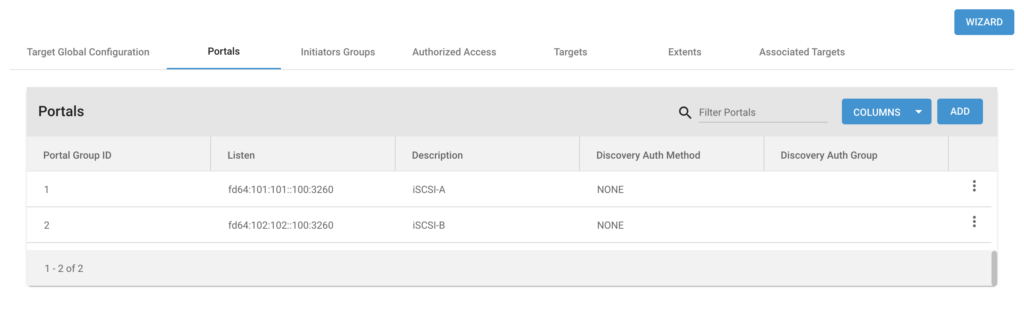
- Sharing > Block Shares (iSCSI) > Portals — make sure two portals exist, one for each interface created previously
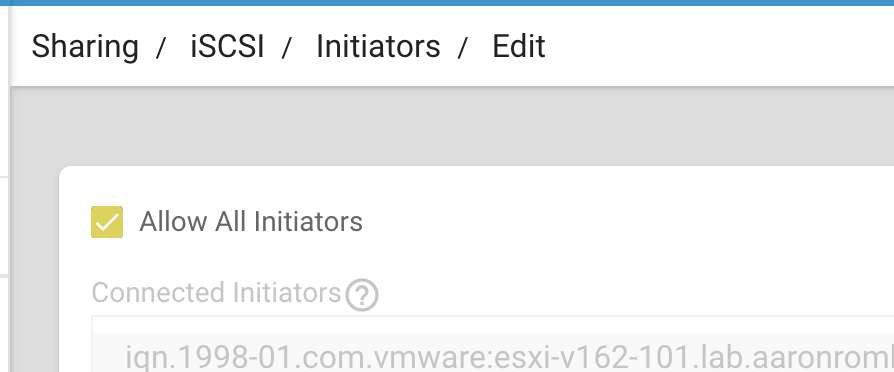
- Sharing > Block Shares (iSCSI) > Initiator Groups — add a group that allows all initiators (this can be secured later if desired)
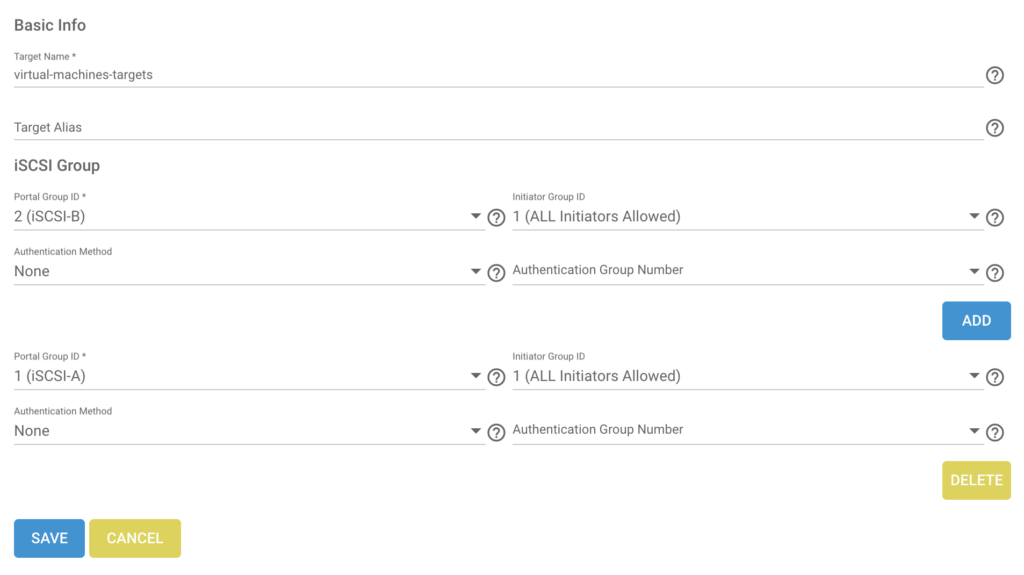
- Sharing > Block Shares (iSCSI) > Targets — add a target using the storage and Initiator Groups configured previously
- Sharing > Block Shares (iSCSI) > Extents — Create an extent from the storage provisioned earlier using the device
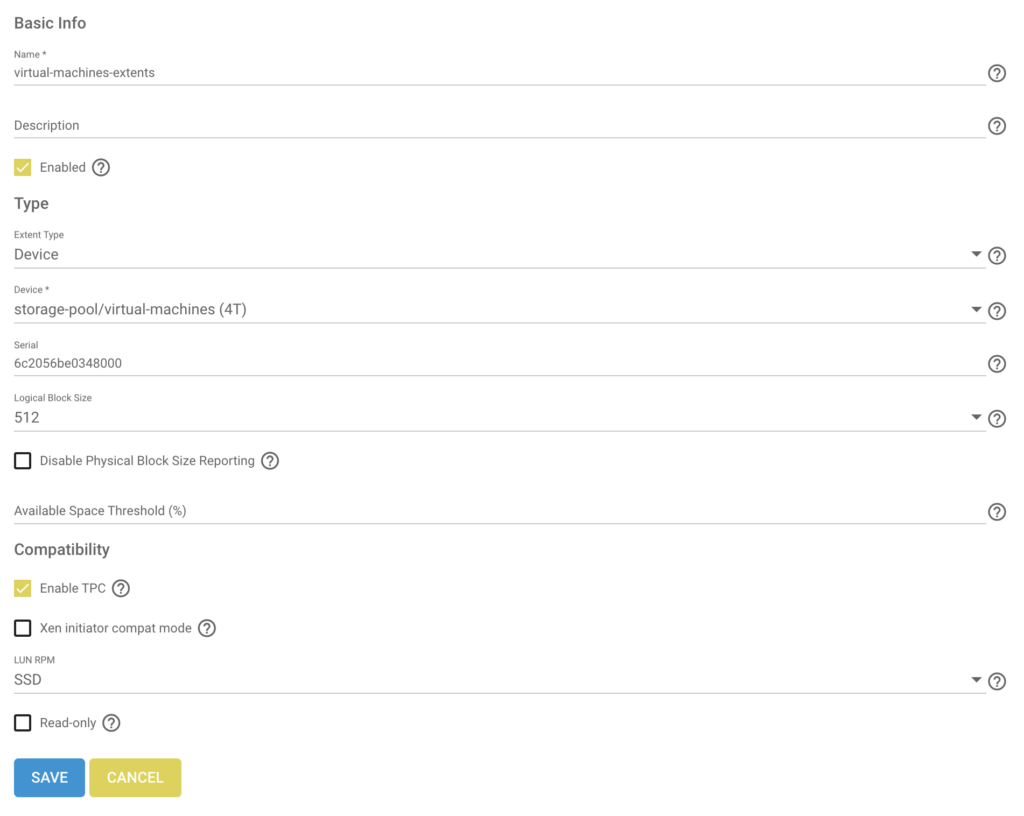
- Sharing > Block Shares (iSCSI) > Associated Targets — tie it all together
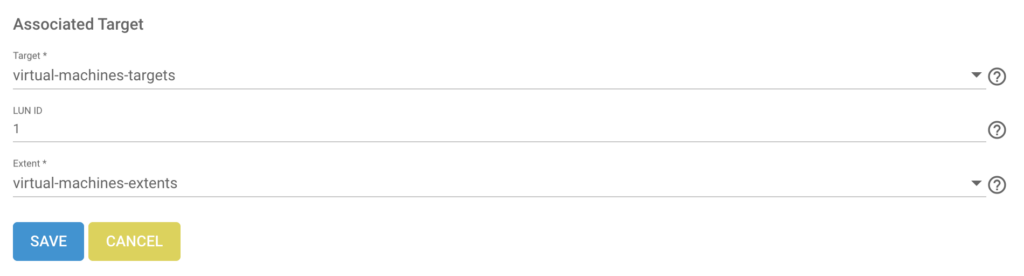
- Sharing > Block Shares (iSCSI) > Portals — make sure two portals exist, one for each interface created previously
- Ensure the service is enabled
- Services > iSCSI > Running
- Services > iSCSI > Start Automatically
Configure ESXi
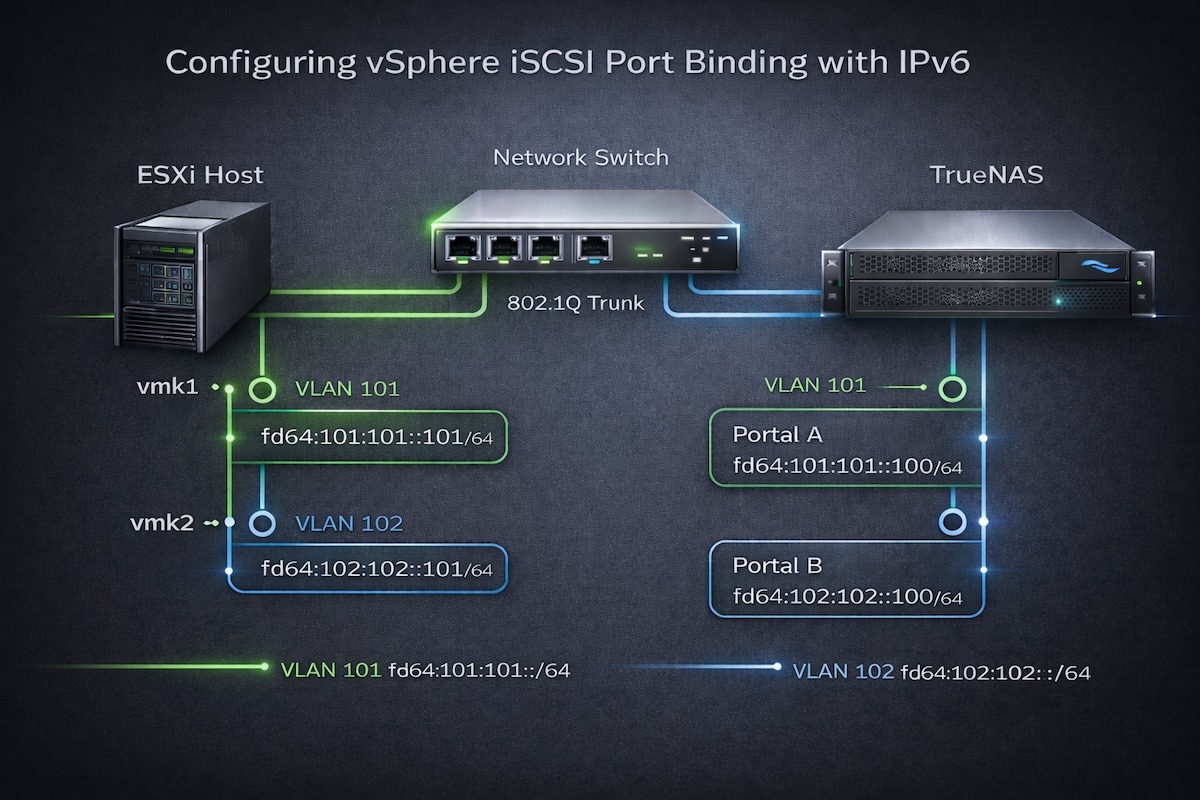
I use two 10 Gbps interfaces on each host and segment the network using VLAN-backed virtual networks.
Networking
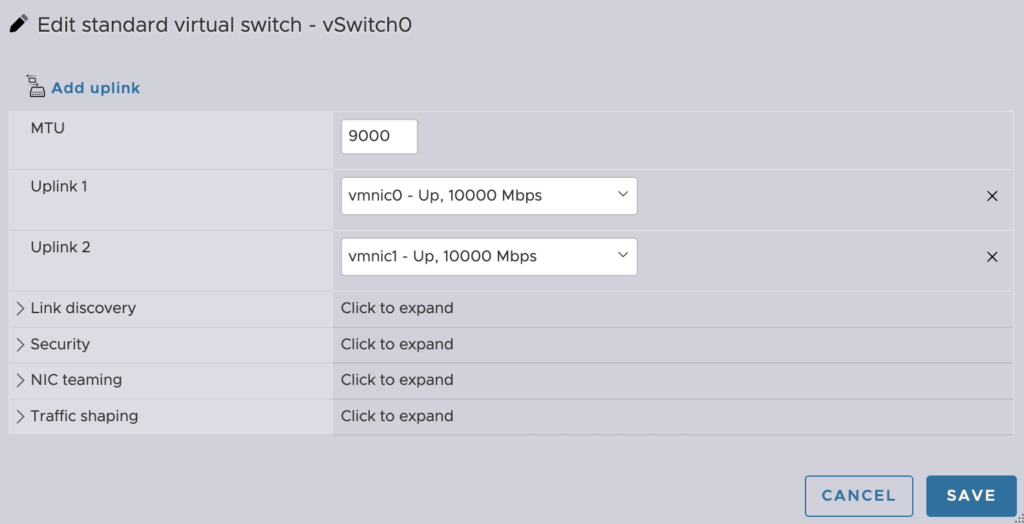
The physical switch should already be configured for jumbo frames, so 9216 or similar according to the vendor and hardware. Be sure to increase the MTU on the virtual switch to 9000 to support jumbo frames.
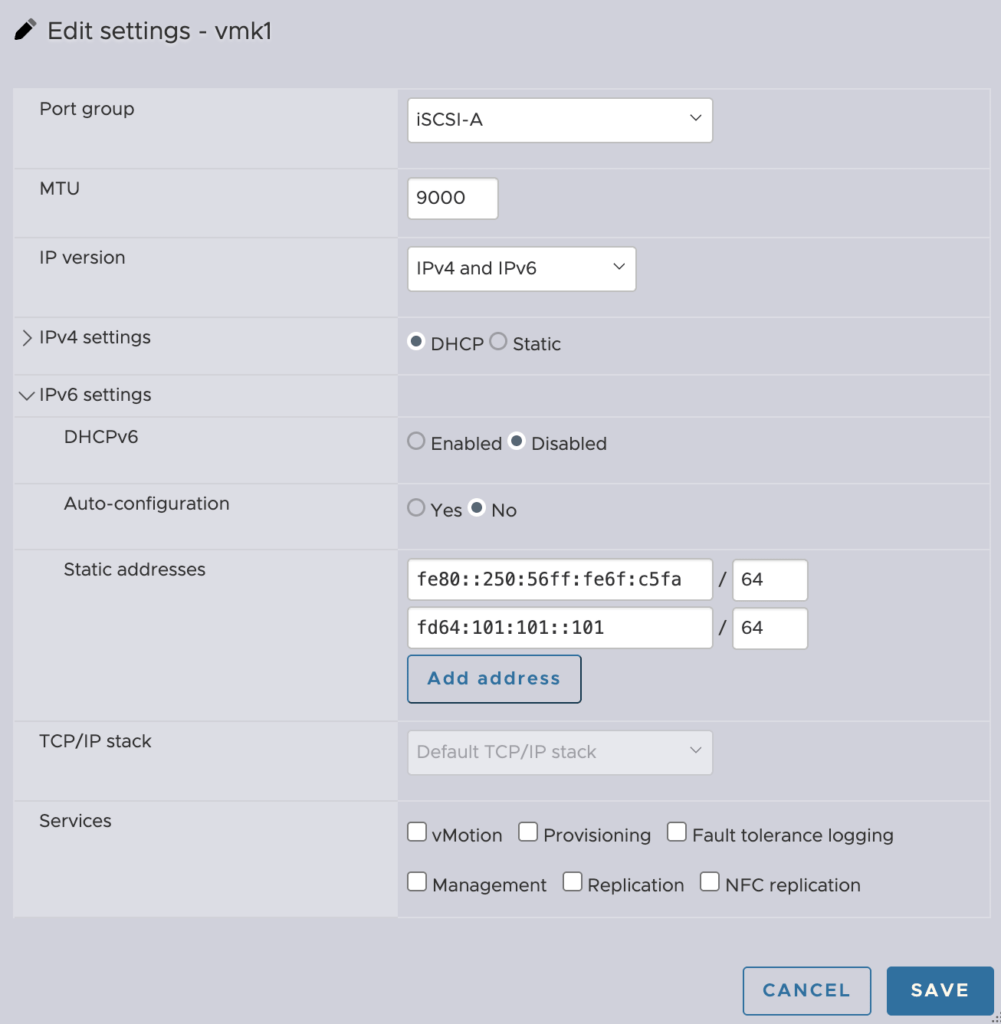
I am not using IPv4 for storage, so ESXi automatically assigns an APIPA address. The link-local IPv6 address is also configured automatically. I manually assigned a Unique Local Address (ULA) starting with fd64:. No square brackets are required when entering the IPv6 address in this version of ESXi.
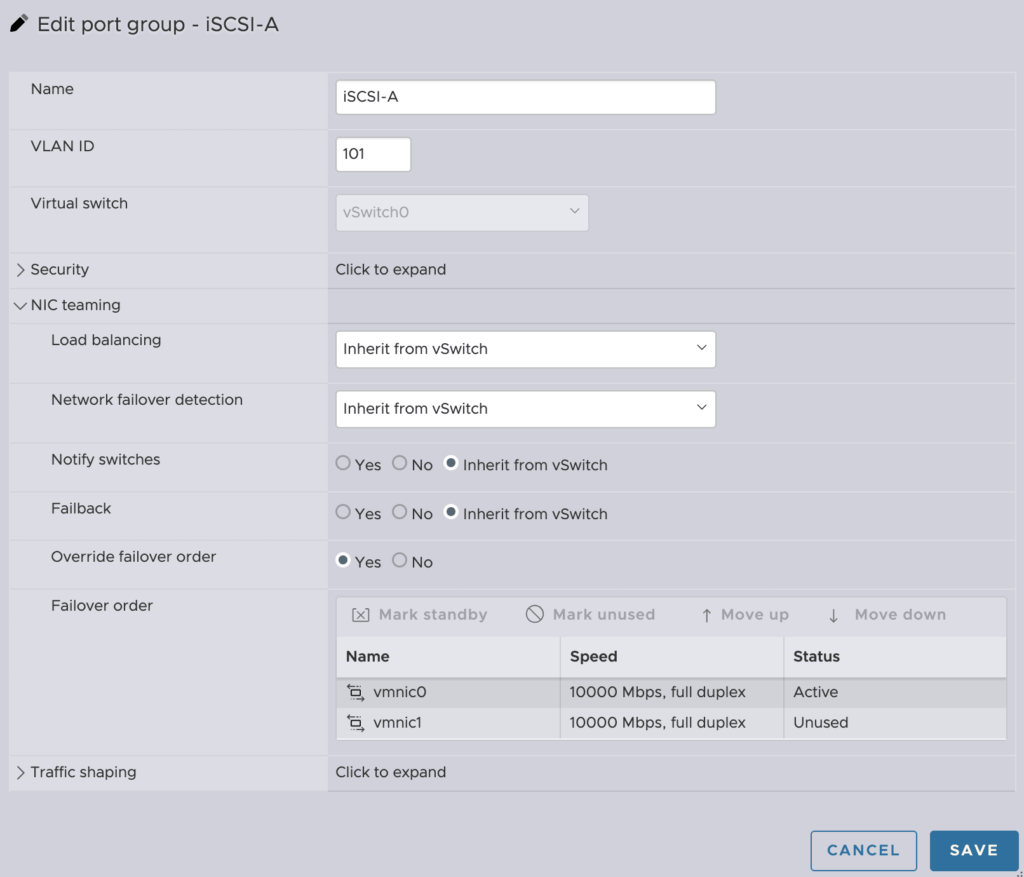
Once both VMkernel NICs are configured, alter the NIC teaming policy. I configure iSCSI-A to be active on vmnic0.
I configure iSCSI-B to be active on vmnic1.
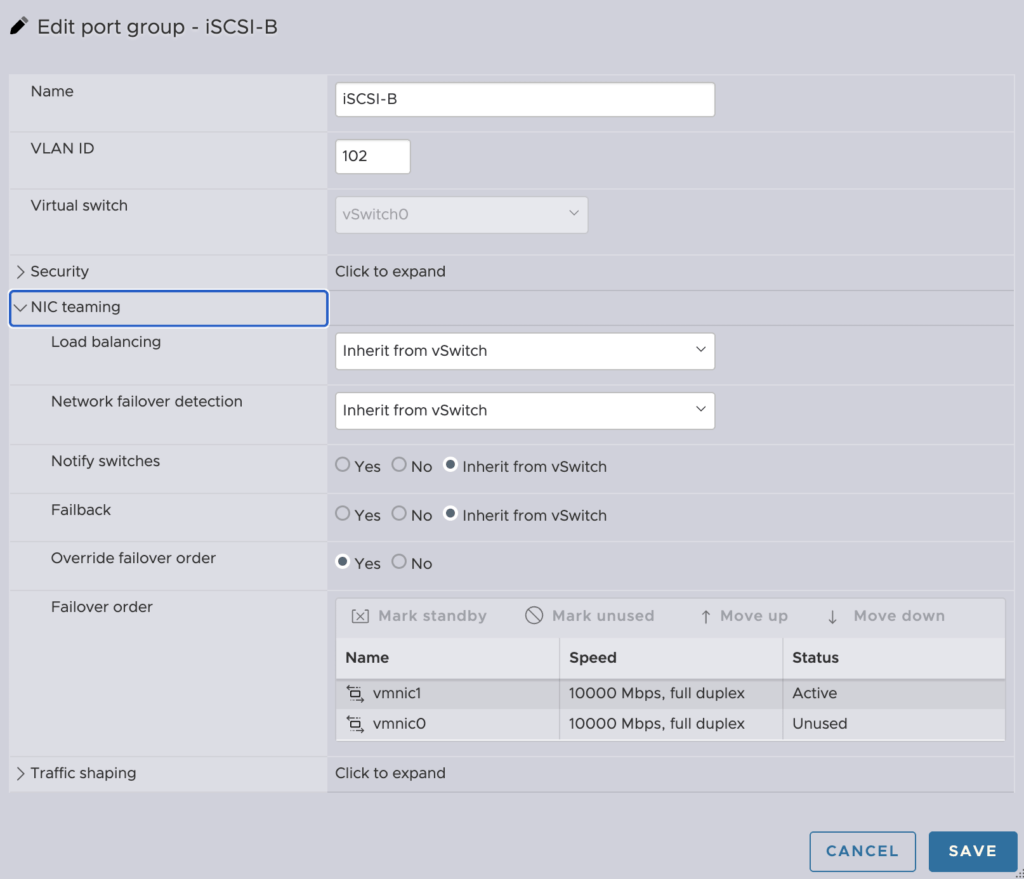
This is required so that port binding can be configured in the storage set up.
Storage
I begin by activating the Software iSCSI adapter (or use a physical adapter if available).
Storage > Adapters > Configure iSCSI (assuming the adapter has already been added or enabled).
The first step is to populate the Network Port Bindings section with the two VMkernel NICs. Notice that the UI displays the APIPA IPv4 addresses rather than the IPv6 addresses. It would be helpful to see the UI updated to reflect IPv6 configurations more clearly.
I can configure a single dynamic target and both paths are typically discovered, but I prefer to configure both targets explicitly.
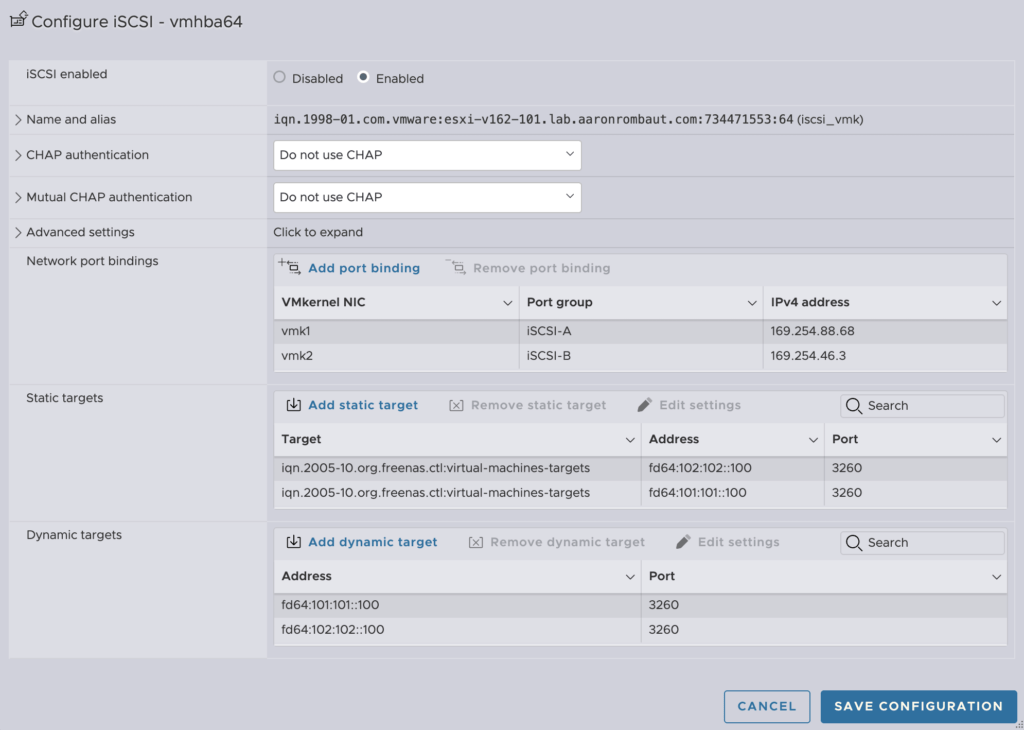
When this screen is complete, ensure that only the iSCSI Software Adapter is highlighted (do not click into the adapter itself) and then select the Rescan icon.
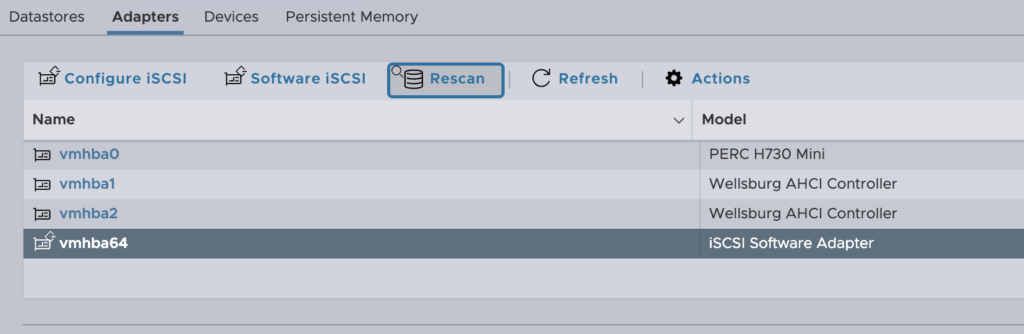
If this is the first time the storage device is being added, there will not yet be a datastore. If only reattaching existing storage, it should appear under Datastores. There may be a Device listed but no Datastore; this indicates the datastore still needs to be created or mounted.
If the TrueNAS device is not discovered and the following has been verified:
- The virtual switch MTU is set to 9000
- The iSCSI VMkernel NICs are set to 9000 MTU
- The VMkernel IPv6 address is configured and on the same subnet as the TrueNAS portal
- The failover order is configured with only one active uplink per VMkernel
- Network Port Binding is configured
- The TrueNAS portal is listening on the expected IPv6 address
- The TrueNAS iSCSI service has been restarted
I initiated an ICMP request (ping) from TrueNAS to the ESXi host. In my testing, this populated the IPv6 neighbor table and immediately allowed iSCSI discovery to succeed.
IPv6 uses Neighbor Discovery Protocol (NDP) instead of ARP, and initiating ICMP traffic forces neighbor entries to be created.
Conclusion
Configuring vSphere iSCSI with IPv6 works exactly as expected once the fundamentals are applied correctly. Although documentation suggests that port binding is not always required, my experience with IPv6 and multiple VMkernel interfaces proved that deterministic binding removes ambiguity. After explicitly binding each VMkernel NIC to the Software iSCSI adapter, discovery and multipathing behaved predictably and reliably.
Leave a Reply