
Overview
This post will serve as the foundation for other posts using a Photon OS 5.0 virtual machine.
Deploy
For this guide, I will be using the Minimal ISO x86_64 installation media. Before beginning the install, you’ll need to size the virtual hardware appropriately—this typically includes selecting the number of virtual CPUs, assigning sufficient virtual memory, and allocating storage based on your expected workloads and package requirements. Once the VM is configured and powered on, the following section provides a brief walkthrough of the installation process.
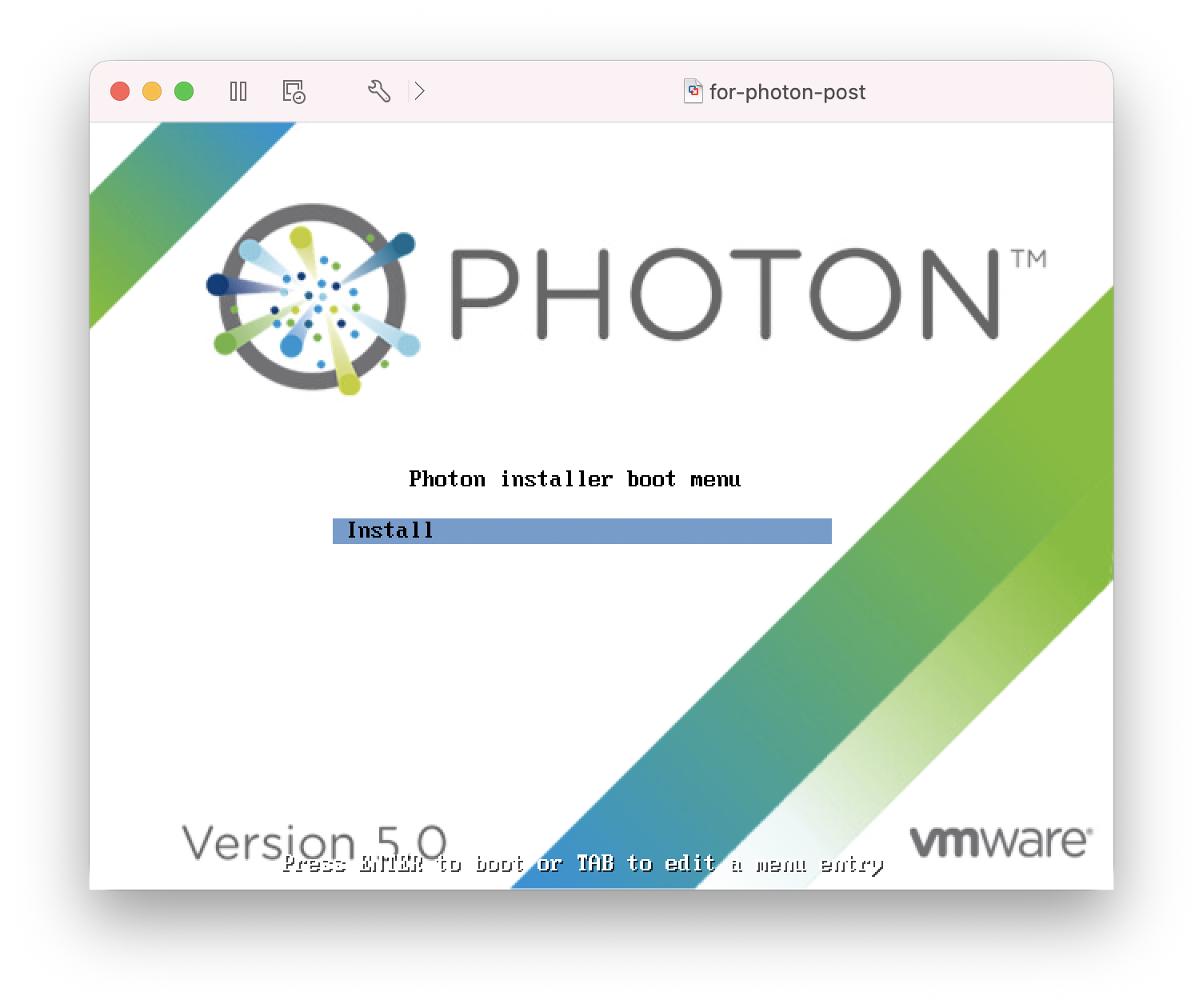
Select Install to get started.
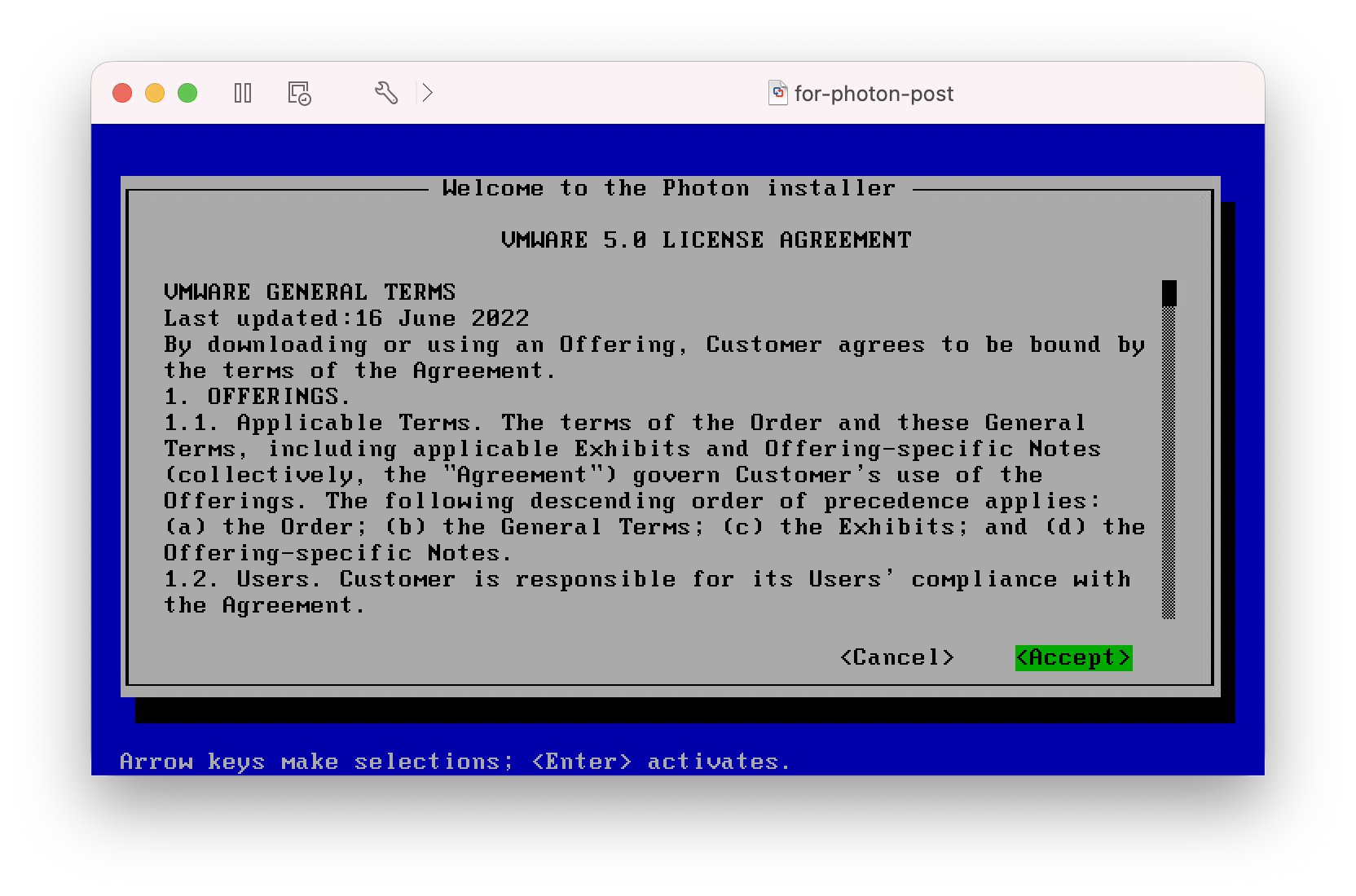
Read and accept the license agreement.
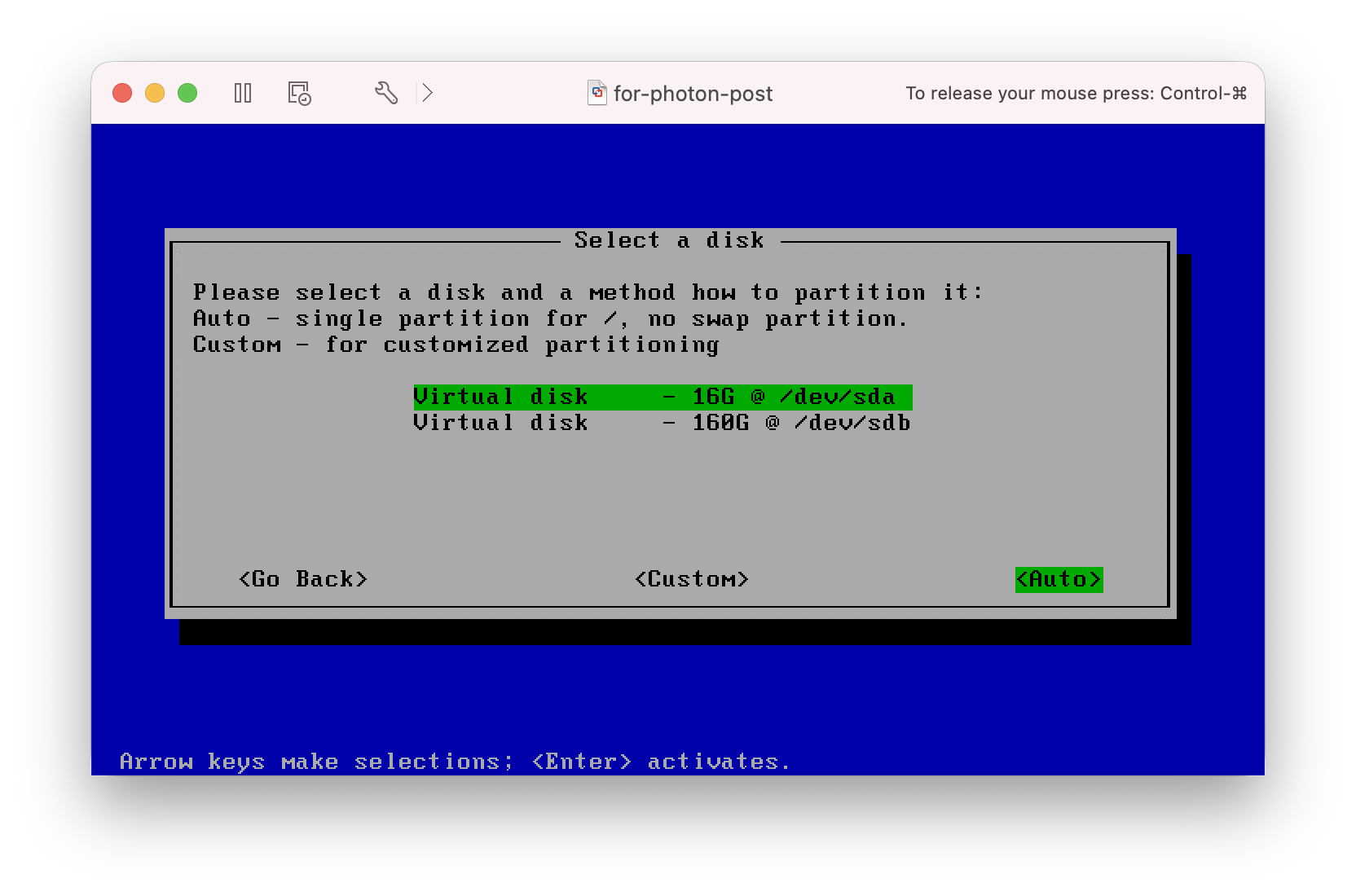
Select the disk to install to.
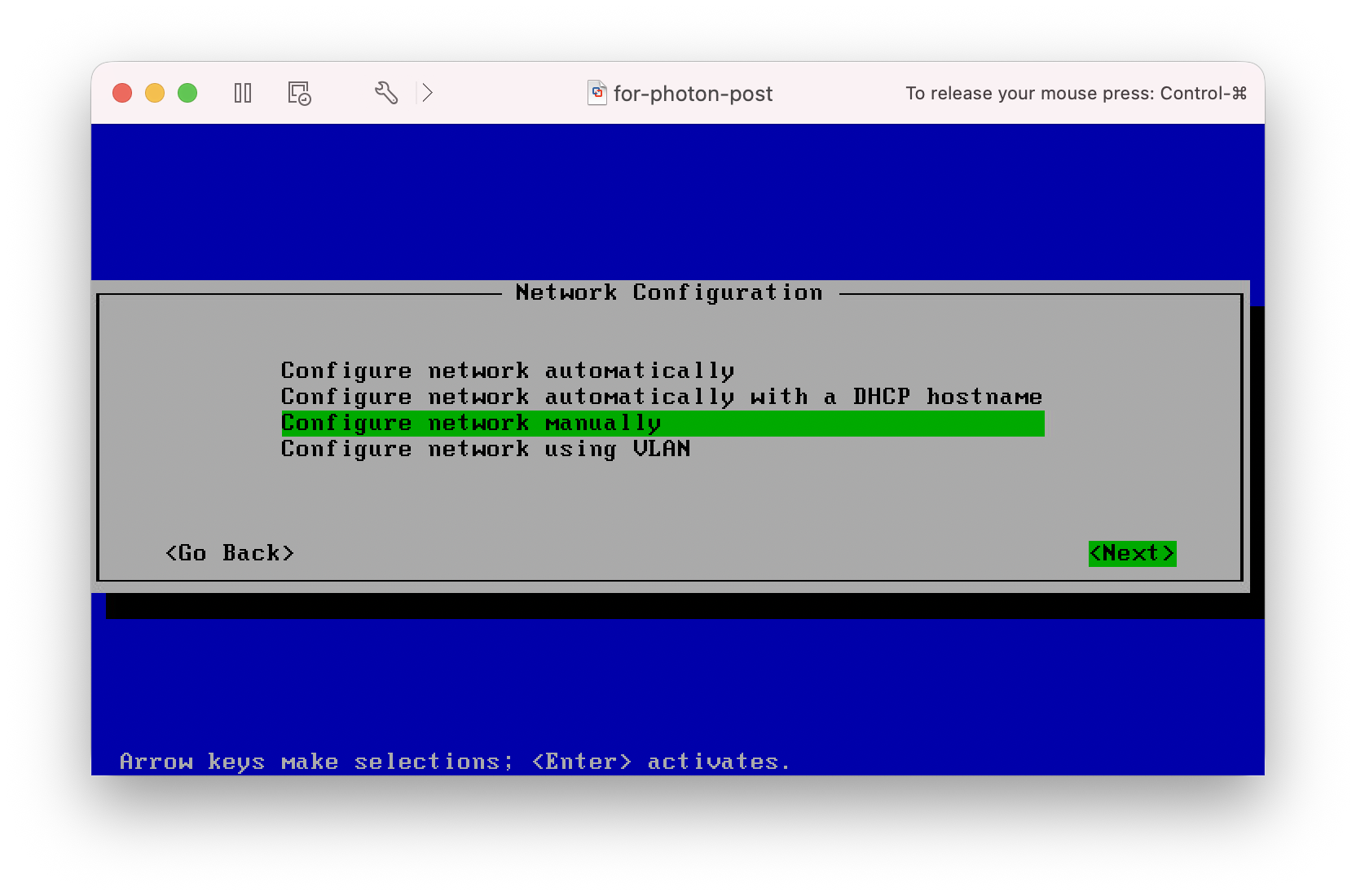
Select Configure the network manually.
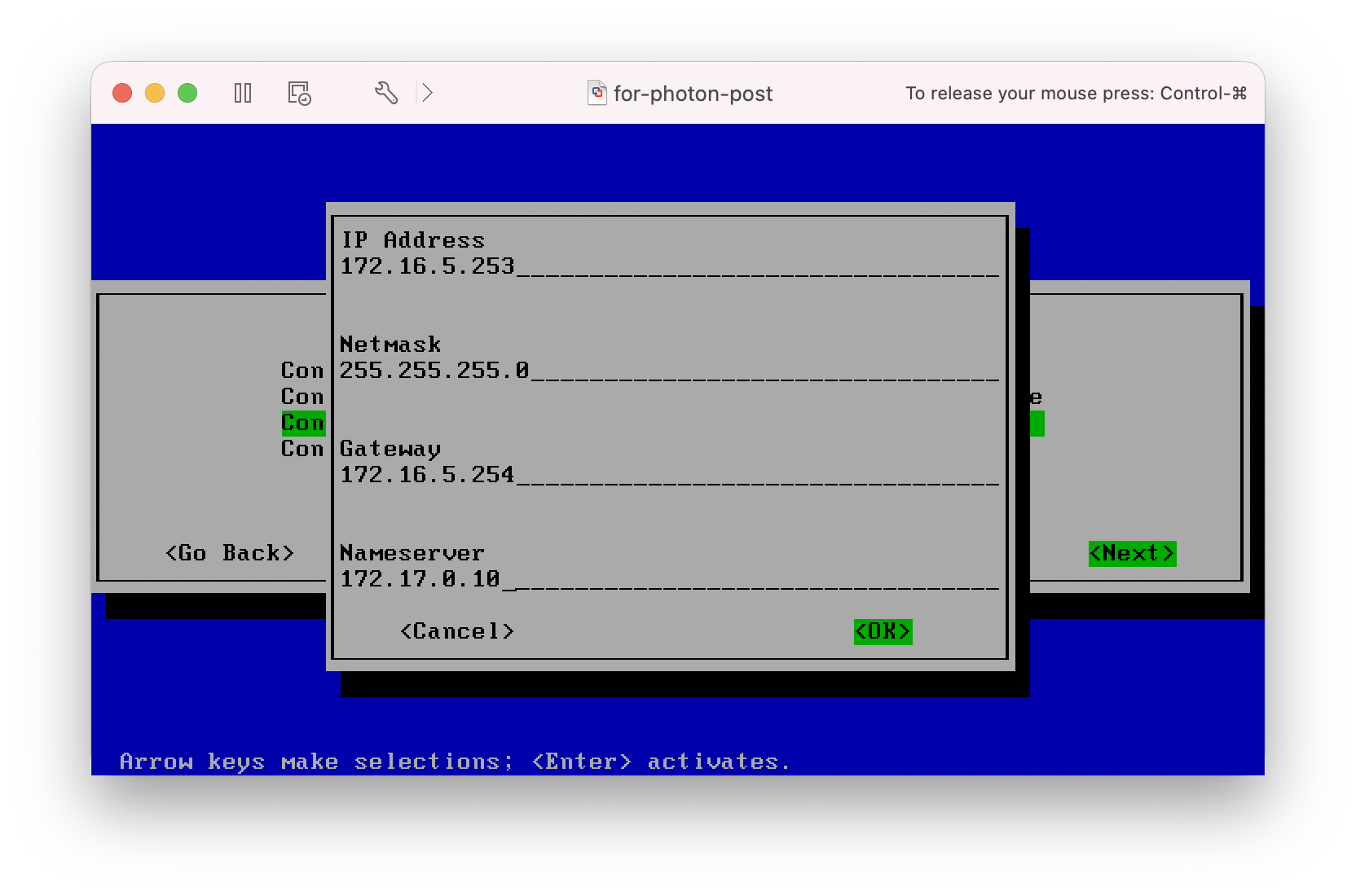
Provide the appropriate IP address settings.
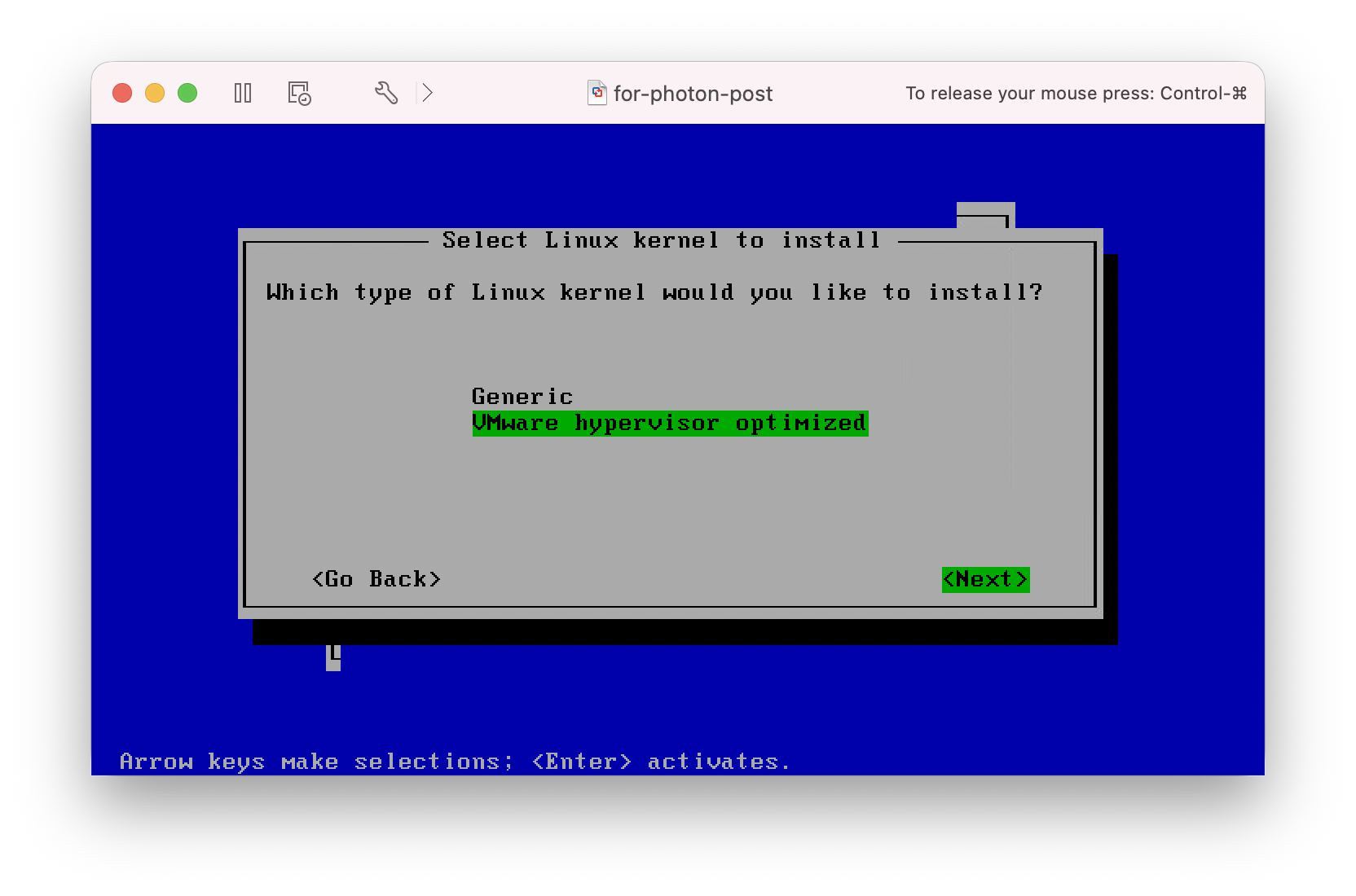
Select VMware hypervisor optimized.
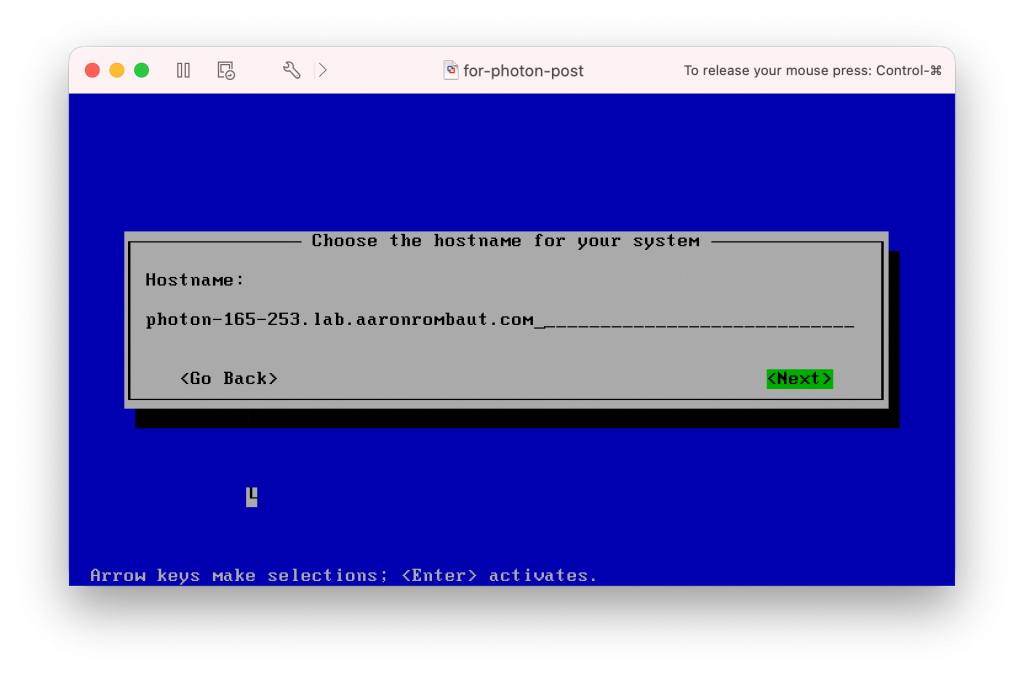
Provide a fully qualified domain name for the hostname.
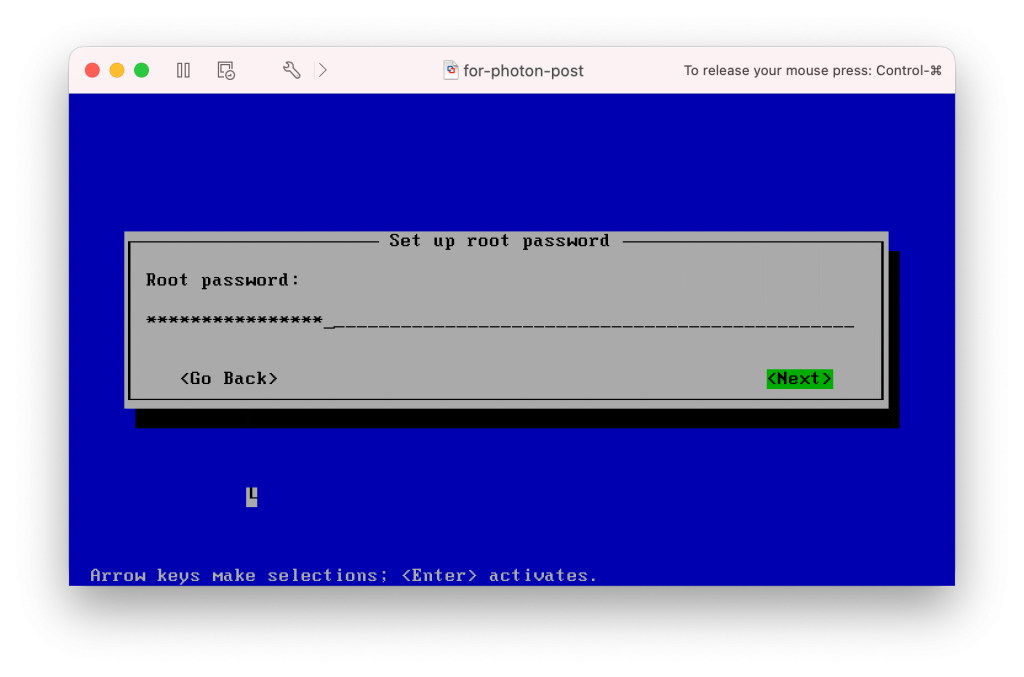
Provide a root password.
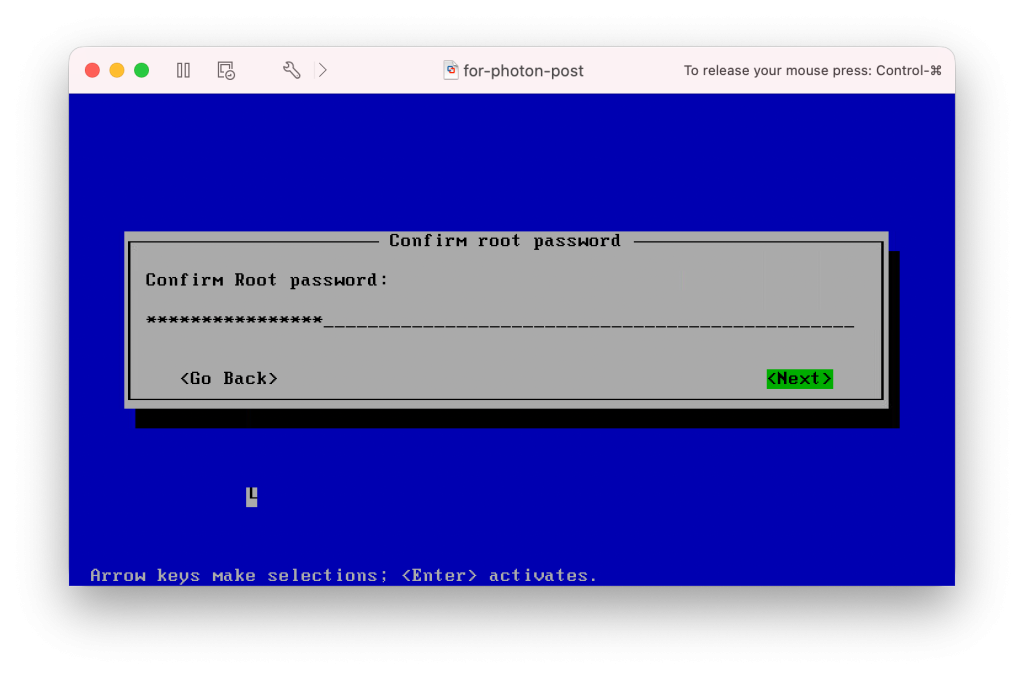
Confirm the root password.
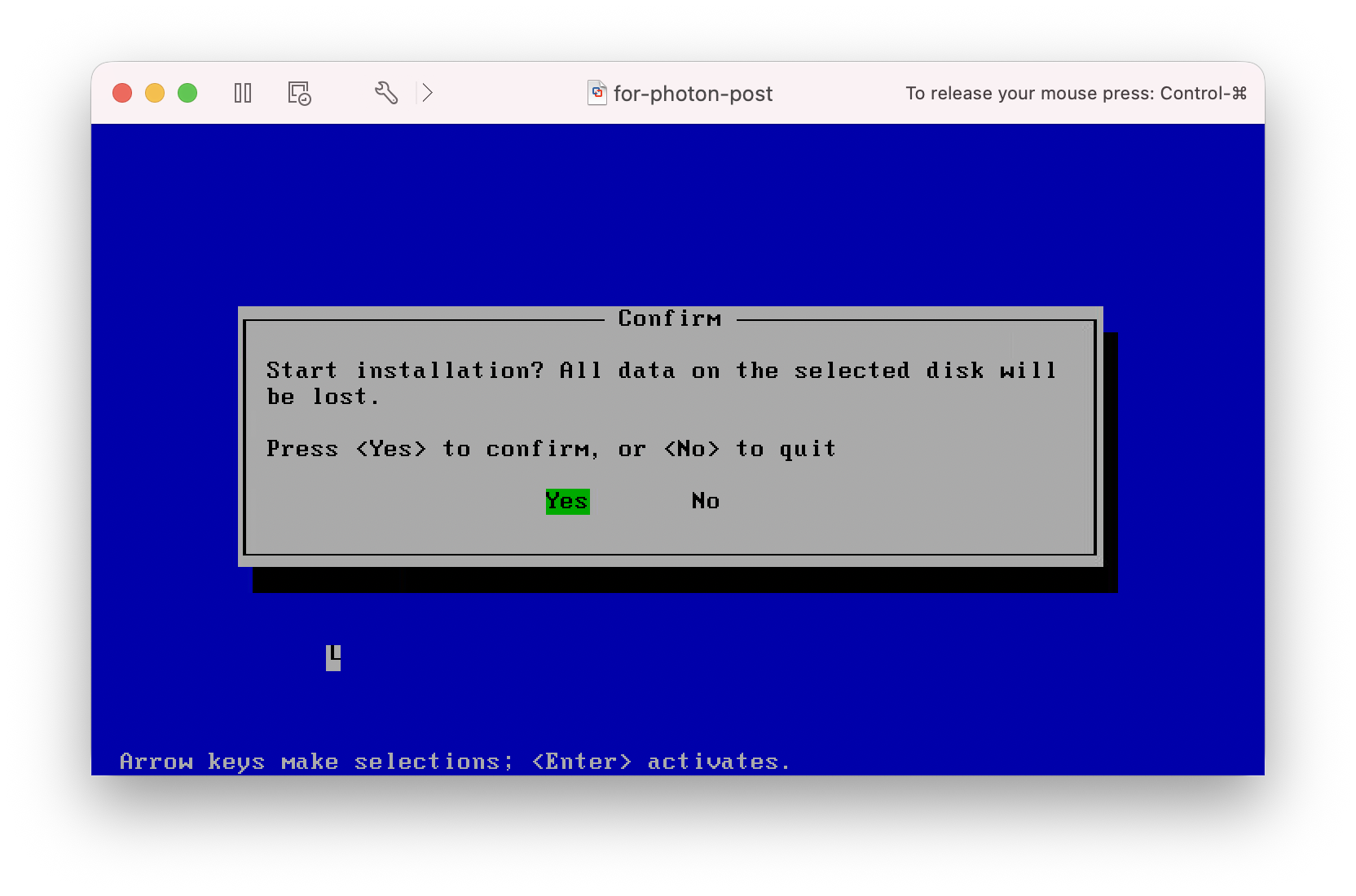
Confirm the installation to begin installing.
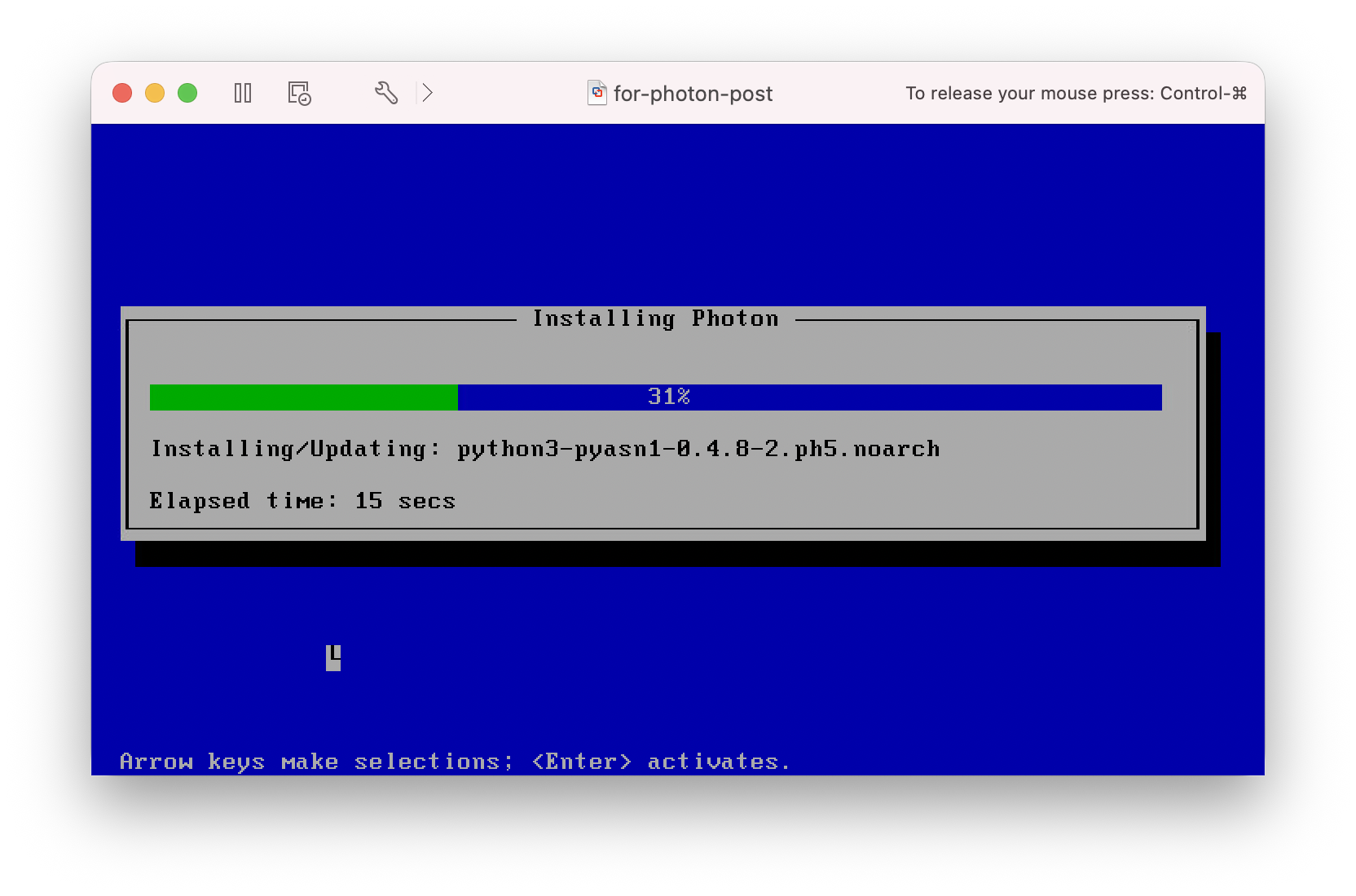
Allow the installation to proceed.
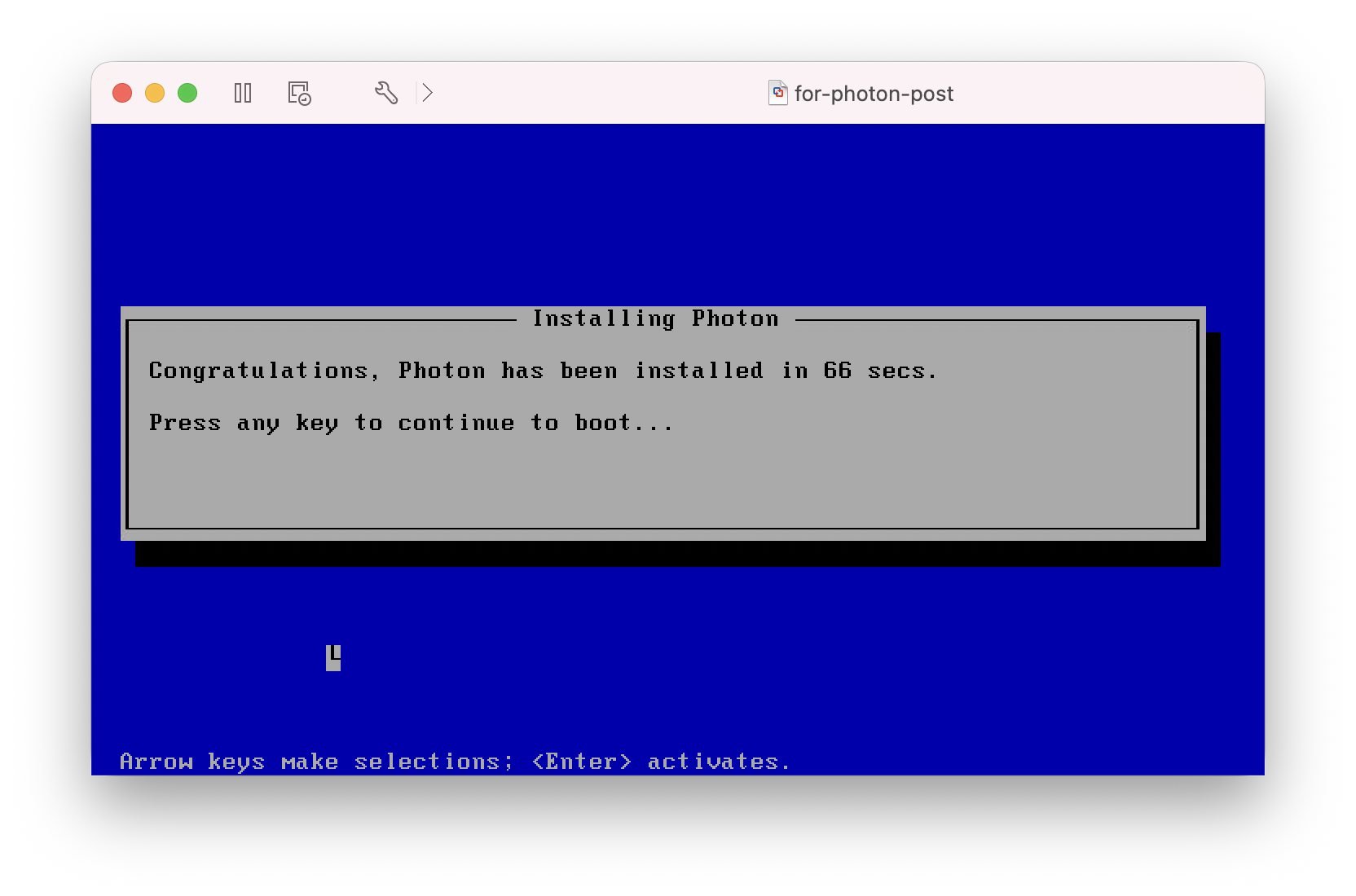
When you see the following screen, it is fully installed and can be rebooted with a press of any key.
Configure
The subsequent sections are mainly optional and don’t need to be completed in the order they’re presented. However, if you install a service like a web server that requires external access, you’ll need to modify firewall rules after the service is installed.
After an initial installation, the only user that will be available is the root user. Use the password configured during the installation.
Update
Photon OS 5 uses a package manager called the Tiny Dandified Yum, or tdnf. The help menu can be accessed with tdnf help.
Usage of the command looks like:
tdnf [options] COMMANDCommon options are:
--assumeno-y, --assumeyes--list
Main commands are:
cleanerasehelpinfoinstalllistremovesearchupdateupgrade
I want to update to the newest versions of packages before starting any other configuration so I will type the following:
tdnf --assumeyes updateOnce the updates are complete, I like to reboot the virtual machine.
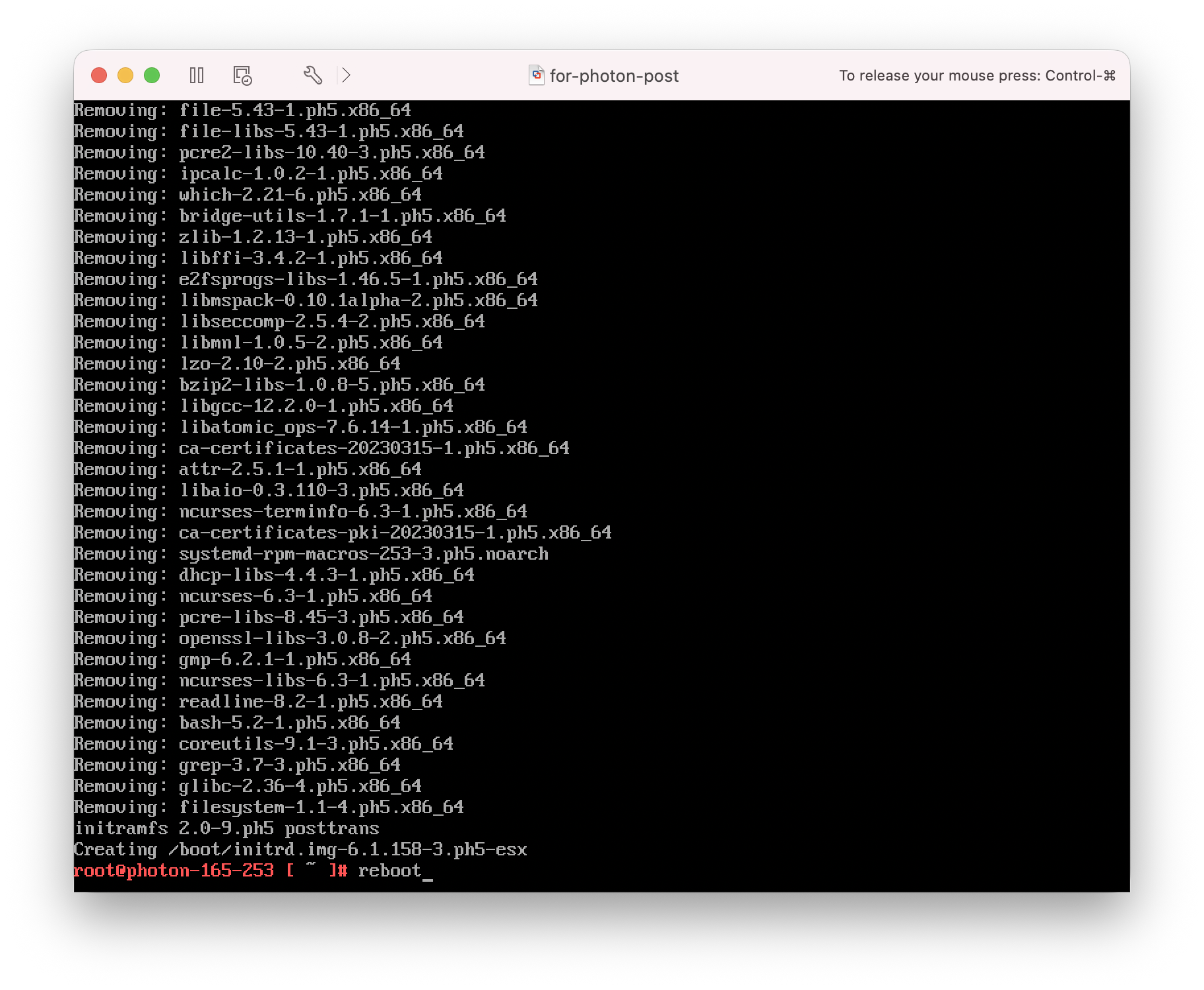
rebootConfiguring Service Units
Photon OS 5 uses Systemd to manage the system and services. Services are a type of resource referred to as units and are controlled with the systemctl command.
Usage of the command looks like:
systemctl [OPTIONS...] COMMAND...List installed unit files.
systemctl list-unit-files [PATTERN...]Starting a service.
systemctl start UNIT...Stopping a service.
systemctl stop UNIT...Reload a service.
systemctl reload UNIT...Restart a service.
systemctl restart UNIT...Enable a service.
systemctl enable [UNIT...|PATH...]Disable a service.
systemctl disable [UNIT...|PATH...]Start or stop a unit after enabling or disabling it.
systemctl enable [UNIT...|PATH...] --nowEnable SSH
By default, the SSH Server is enabled and running.
systemctl status sshd.service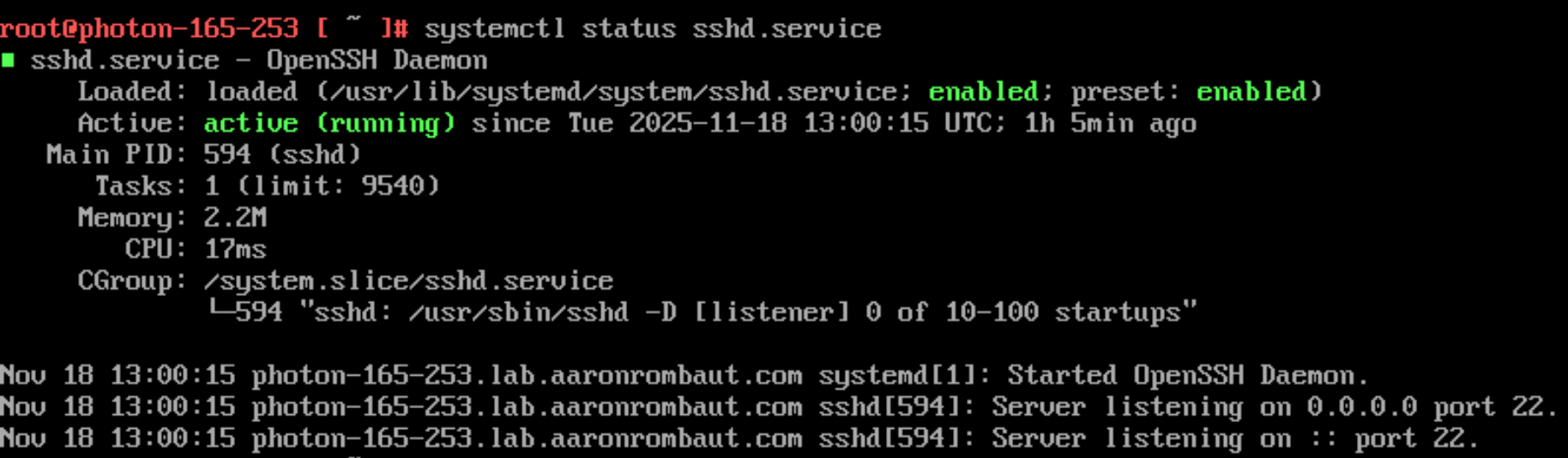
If for some reason, this is not the case, then the service can be started.
systemctl start sshd.serviceAlso by default, the root user is not permitted to connect to the virtual machine with SSH. Modify the configuration file to allow this or add additional users.
vi /etc/ssh/sshd_config +32This should land you on the appropriate line. Use Shift + A to edit the line. It should be the following to allow the root user to connect.
PermitRootLogin yesSave and close the file.
Esc
:wq
When changes are made, the service needs to be restarted to make the changes effective.
If other changes were made, the configuration can be tested for errors using:
sshd -tAs long as there is no output, then the configuration can be considered safe.
An extended test can also be made to check for the effective configuration, especially in the case of drop-in files. The last known key value pair will be in the effective configuration.
sshd -TTo restart the the sshd.service service:
systemctl restart sshd.serviceiptables
Photon OS 5 uses iptables to monitor and filter network traffic based on rules stored in tables.
It is usually a good idea to see what already exists.
iptables -L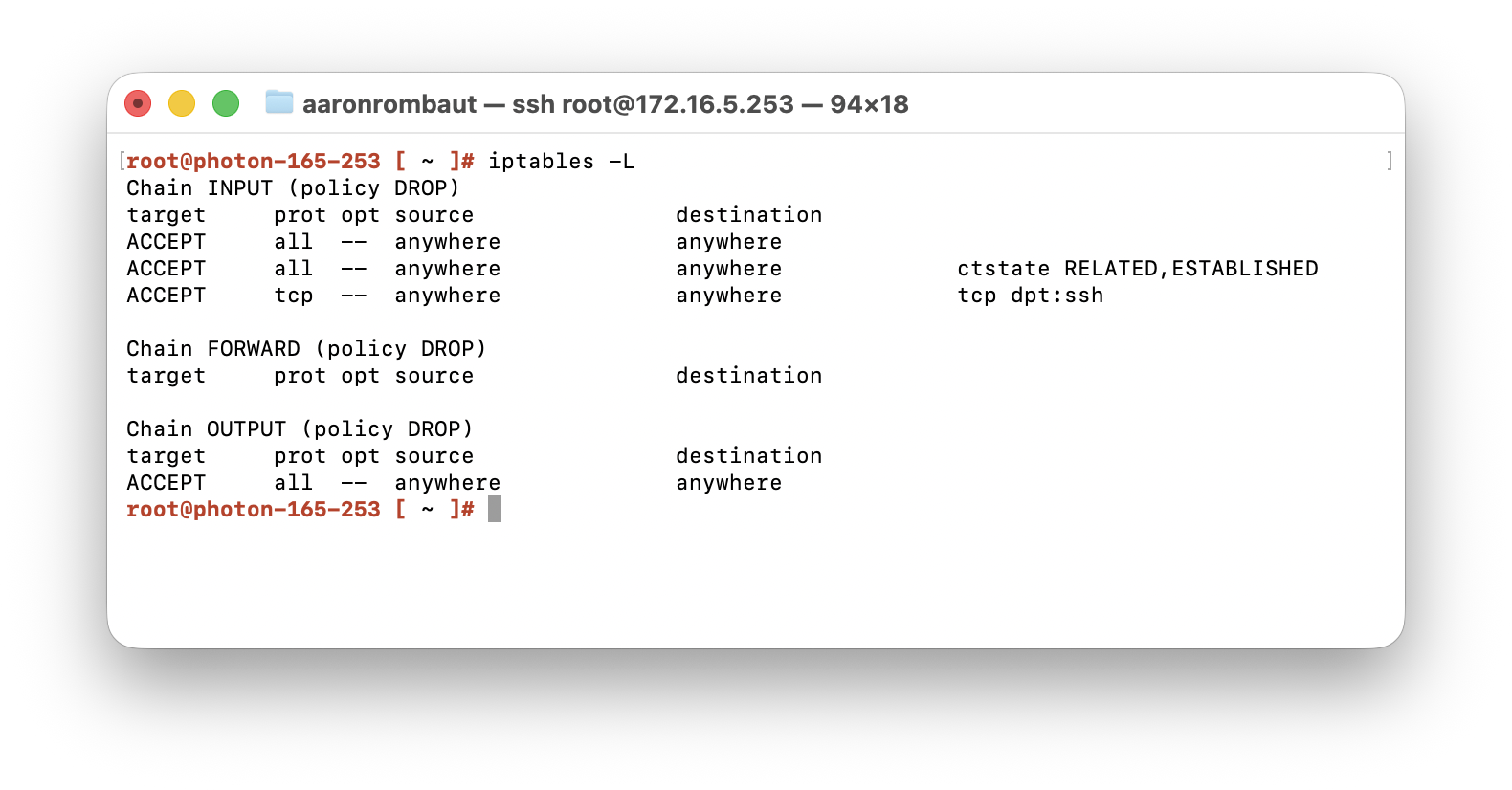
Append an allow rule for traffic to iptables. The below example allows the https protocol.
iptables -A INPUT -p tcp --dport 443 -j ACCEPT-A, --append chain-p, --protocol protocol--dport (destination port)-j, --jump targetMake the rules persistent.
iptables-save > /etc/systemd/scripts/ip4saveConfigure TCP keepalive parameters
TCP keepalive is a mechanism that sends a small, empty packet every so often just to keep the connection alive.
Edit or create the user’s .ssh configuration.
vi ~/.ssh/configAdd the following parameters to the file. The host can be specified if needed.
Host *
    ServerAliveInterval 60
    ServerAliveCountMax 5
ServerAliveInterval 60: every 60 seconds, the SSH client sends a keepalive packet.
ServerAliveCountMax 5: if 5 keepalive packets go unanswered (i.e., 5 minutes of silence), the SSH session ends cleanly instead of hanging forever.
Save and close the file.
Esc
:wq
This keeps the SSH connection active and recovers gracefully if the remote host truly disappears.
Partition and format additional storage
Identify the new disk (example: /dev/sdb).
lsblk -fPartition the entire disk.
fdisk /dev/sdbAdd a new partition — n.
Welcome to fdisk (util-linux 2.38).
Changes will remain in memory only, until you decide to write them.
Be careful before using the write command.

Device does not contain a recognized partition table.
Created a new DOS disklabel with disk identifier 0x2d39bf94.

Command (m for help): n
Partition type is primary — p.
Partition type
   p   primary (0 primary, 0 extended, 4 free)
   e   extended (container for logical partitions)
Select (default p):
Using default response p.
Partition number 1.
Partition number (1-4, default 1):First sector is default.
First sector (2048-2147483647, default 2048):Last sector is default.
Last sector, +/-sectors or +/-size{K,M,G,T,P} (2048-2147483647, default 2147483647): Summary of operations completed.
Created a new partition 1 of type 'Linux' and of size 1024 GiB.When returned back to Command (m for help): use the letter w to write the changes.
Command (m for help): w
The partition table has been altered.
Calling ioctl() to re-read partition table.
Syncing disks.
Format the disk with a file system.
mkfs -t ext4 /dev/sdb1Attach and mount additional storage
Create a mount point that will be used for the mount.
mkdir -p /path/to/mountA few possible directories to consider.
/var for variable length (logs, web documents)/opt for optional third-party software/mnt for temporary mountsRetrieve the partition UUID.
UUID=$(blkid -s PARTUUID -o value /dev/sdb1)Add the disk to fstab.
echo "PARTUUID=${UUID} /path/to/mount ext4 defaults 0 2" >> /etc/fstabNote: Make sure there are no files currently in the /path/to/mount directory. If there are, move them to somewhere else. Mounting storage to a directory containing files will make those files inaccessible.
Mount and verify.
mount -adf -h /path/to/mountConfigure the IP Address or DNS server Settings
Modify the 50-static-en.network file in the /etc/systemd/network/ directory.
vi /etc/systemd/network/50-static-en.network +7
Shift + A
On line 7, DNS, add an additional entry, but no more than two!
  1 [Match]
  2 Name=eth0
  3
  4 [Network]
  5 IPv6AcceptRA=no
  6 Address=172.16.5.2/24
  7 DNS=172.17.0.10 172.17.0.11
  8 Gateway=172.16.5.254
Save and close the configuration file.
Esc
:wq
Restart the resolved service.
systemctl restart systemd-resolvedCheck the DNS Servers configuration for Link 2 (eth0).
resolvectl statusIf the address information was configured, restart the networkd service.
systemctl restart systemd-networkdVerifying or Upgrading open-vm-tools
To verify the current running version of open-vm-tools.
vmware-toolbox-cmd -vTo upgrade open-vm-tools.
tdnf upgrade open-vm-toolsThe service unit for open-vm-tools is vmtoolsd.service.
systemctl status vmtoolsd.service● vmtoolsd.service - Service for virtual machines hosted on VMware
Loaded: loaded (/usr/lib/systemd/system/vmtoolsd.service; enabled; preset: enabled)
Active: active (running) since Tue 2025-12-09 16:28:10 UTC; 7min ago
Docs: http://github.com/vmware/open-vm-tools
Main PID: 490 (vmtoolsd)
Tasks: 3 (limit: 4709)
Memory: 8.1M
CPU: 830ms
CGroup: /system.slice/vmtoolsd.service
└─490 /usr/bin/vmtoolsd
Dec 09 16:28:10 depot-165-2.lab.aaronrombaut.com systemd[1]: Started Service for virtual machines hosted on VMware.
Leave a Reply