
Overview
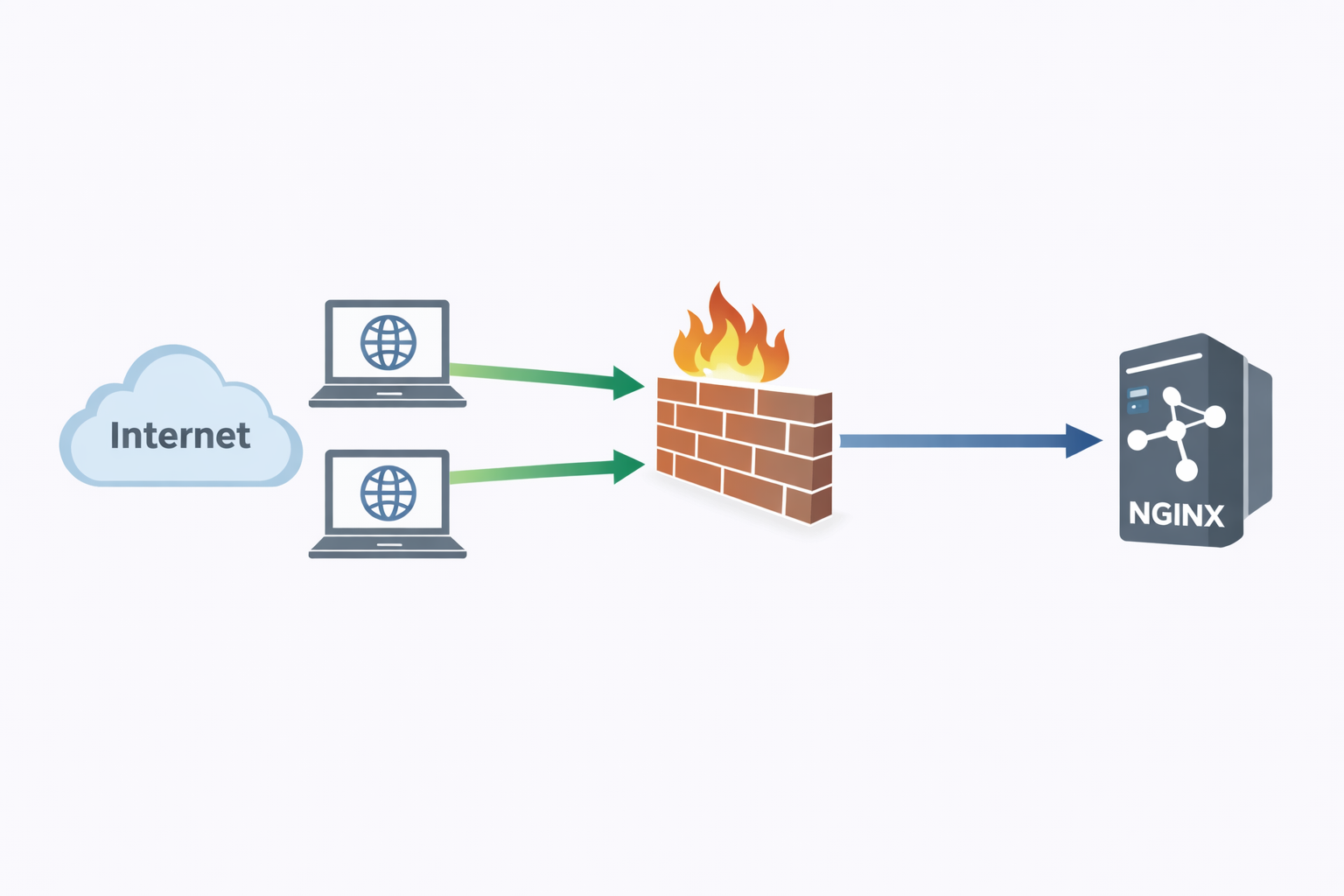
This post documents a clean, portable baseline configuration for NGINX focused on static web hosting with TLS enabled. The objective is to create a simple, repeatable reference that works consistently across distributions — whether Rocky Linux, Debian-based systems such as Raspberry Pi OS, or other Linux platforms.
Rather than relying on distribution-specific layout conventions such as sites-available and sites-enabled, this guide follows the commonly adopted upstream pattern of defining server blocks within /etc/nginx/conf.d/*.conf, as included from the main nginx.conf file. This keeps the configuration aligned with widely recognized NGINX packaging standards while remaining flexible and maintainable.
The configuration examples prioritize:
- Clear server block structure
- Explicit HTTP to HTTPS redirection
- Modern TLS settings (TLS 1.2 and 1.3)
- Minimal static site handling using
try_files - A layout that avoids Apache-style concepts such as
.htaccess
This configuration assumes TLS is enabled directly on NGINX. In environments where an upstream load balancer is present, such as an enterprise Application Delivery Controller (ADC), TLS may be terminated at the load balancer, re-encrypted to the backend, or passed through entirely. The examples in this guide can be adapted to any of these models while maintaining a consistent configuration structure.
RTFM
NGINX Documentation – https://nginx.org/en/docs
NGINX Admin Guide – https://docs.nginx.com/nginx/admin-guide
Installing NGINX
NGINX can be installed using the native package manager of your Linux distribution. This guide assumes a standard repository installation and that the service is managed via systemd.
# Verify installation
nginx -v

# Validate configuration
nginx -t

# Start and enable
systemctl enable nginx --now
Configuration Layout and File Structure
The main configuration file is nginx.conf and can be located in one of the following directories:
/usr/local/nginx/conf/etc/nginx/usr/local/etc/nginx
To keep things well organized and easier to maintain, NGINX can use a separate directory to include additional feature-specific files. These are usually stored in the /etc/nginx/conf.d directory and are referenced with an include directive in the main file.
Comments begin with the octothorp (#).
Directives Explained
NGINX is modular and controlled entirely through configuration directives. Directives are divided into two types:
- A simple directive consists of the name and parameters separated by spaces and ends with a semicolon (
;). Here are a couple examples:
listen 443 ssl;
listen [::]:443 ssl;- A block directive has the same structure as a simple directive, but instead of the semicolon it ends with a set of additional instructions surrounded by braces (
{and}). Here is an example:
location / {
    try_files $uri $uri/ /index.php?$args;
}
When a block directive has other directives inside braces, it is called a context. Examples of a context include:
- events
- http
- server
- location
There is a top level context, called the main context. This is not called out explicitly, in other words, there is no block directive explicitly called main { }. The idea is that if any directives are placed in the configuration file not in any other contexts, they are considered in the main context. Examples of directives in the main context are:
- error_log
- events
- http
- user
For a complete list of directives, syntax, defaults, and what context they belong to, refer to: https://nginx.org/en/docs/dirindex.html.
Contexts that contain other contexts, i.e. child contexts, will inherit the settings of the parent level. This allows generic settings to apply to all child contexts. If a directive must differ, it can be overridden at the lower level.
HTTP Server Block (Context)
The http context includes one or more server blocks, but must include at least one. This establishes what are known as virtual servers. Server blocks control the processing of requests from either IP addresses or domains. There can also be one or more location blocks within the server block that define where content is served from.
Here is an example of an http block with two virtual servers configured:
http {
    # Configuration specific to HTTP and affecting all virtual servers
    server {
        # configuration of HTTP virtual server 1
        location /one {
            # configuration for processing URIs starting with '/one'
        }
        location /two {
            # configuration for processing URIs starting with '/two'
        }
    }
    server {
        # configuration of HTTP virtual server 2
    }
}
Putting it all Together
This section will show a real-world configuration. This will be from the perspective of an 8 GB Raspberry Pi 5, running Raspberry Pi OS Lite (Debian GNU/Linux 13 (trixie)).
NGINX Directory
I added highlights to draw your attention to what’s going on.
The conf.d directory is where all the virtual server configurations are located and the snippets directory is where I have common directives. In these configuration files, there are directives that are used in every virtual server I have configured.
The nginx.conf file is the main configuration file. It includes directives to include anything in the conf.d directory with a file ending with .conf.
/etc/nginx
├── conf.d
│   ├── default
│   ├── dev.aaronrombaut.com.conf
│   ├── kanban.conf
│   ├── phpmyadmin.conf
│   └── www.aaronrombaut.com.conf
├── fastcgi.conf
├── fastcgi_params
├── koi-utf
├── koi-win
├── mime.types
├── modules-available
├── modules-enabled
├── nginx.conf
├── proxy_params
├── scgi_params
├── snippets
│   ├── fastcgi-php.conf
│   └── snakeoil.conf
├── uwsgi_params
└── win-utf

5 directories, 18 files
nginx.conf
user www-data;
worker_processes auto;
worker_cpu_affinity auto;
pid /run/nginx.pid;
error_log /var/log/nginx/error.log;
include /etc/nginx/modules-enabled/*.conf;

events {
	worker_connections 768;
	# multi_accept on;
}

http {
	##
	# Basic Settings
	##

	sendfile on;
	tcp_nopush on;
        keepalive_timeout 15;
	types_hash_max_size 2048;
	server_tokens off; # Recommended practice is to turn this off

	# server_names_hash_bucket_size 64;
	# server_name_in_redirect off;

	include /etc/nginx/mime.types;
	default_type application/octet-stream;

	##
	# SSL Settings
	##

	ssl_protocols TLSv1.2 TLSv1.3; # Dropping SSLv3 (POODLE), TLS 1.0, 1.1
	ssl_prefer_server_ciphers off; # Don't force server cipher order.

	##
	# Logging Settings
	##

	access_log /var/log/nginx/access.log;

	##
	# Gzip Settings
	##

	gzip on;

	# gzip_vary on;
	# gzip_proxied any;
	# gzip_comp_level 6;
	# gzip_buffers 16 8k;
	# gzip_http_version 1.1;
	# gzip_types text/plain text/css application/json application/javascript text/xml application/xml application/xml+rss text/javascript;

	##
	# Virtual Host Configs
	##

	include /etc/nginx/conf.d/*.conf;
}


#mail {
#	# See sample authentication script at:
#	# http://wiki.nginx.org/ImapAuthenticateWithApachePhpScript
#
#	# auth_http localhost/auth.php;
#	# pop3_capabilities "TOP" "USER";
#	# imap_capabilities "IMAP4rev1" "UIDPLUS";
#
#	server {
#		listen     localhost:110;
#		protocol   pop3;
#		proxy      on;
#	}
#
#	server {
#		listen     localhost:143;
#		protocol   imap;
#		proxy      on;
#	}
#}
Virtual Servers
In the conf.d directory are where the virtual server configuration files are located. The following is an example virtual server I have configured.
server {
    listen 443 ssl;
    listen [::]:443 ssl;
    http2 on;
    server_name dev.aaronrombaut.com;

    root /var/www/dev.aaronrombaut.com;
    index index.php index.html;

    ssl_certificate     /etc/ssl/certs/cf-origin.pem;
    ssl_certificate_key /etc/ssl/private/cf-origin.key;

    location / {
        try_files $uri $uri/ /index.php?$args;
    }

    location ~ \.php$ {
        include snippets/fastcgi-php.conf;
        fastcgi_pass unix:/run/php/php8.4-fpm.sock;
    }

    location ~* /(wp-config\.php|\.git|\.ht) {
        deny all;
    }

    client_max_body_size 64M;
}
The listen directives are what tells nginx what port to listen to and optionally, what address. Here, I have specified both an IPv4 and an IPv6 listener and they are both configured to work in SSL mode.
The server_name directive is used here because I have more than one virtual server configured and only one IP address. Using the server_name directive allows nginx to use a matched block, therefore allowing more than one virtual server to be hosted.
The root directive applies to the server block. It defines the top-most level of where directories should start from. These matter for when using the location directives later in the server context.
The ssl_certificate and ssl_certificate_key point to files maintained by the operating system. The certificates do not need to be maintained there, but for simplicity, I chose this location. A new directory could be added as long as it is referenced and permissions are applied correctly.
Location blocks may include regular expression modifiers (discussed in the next section). These blocks refer to how to handle the requested traffic. They can by matched against a normalized Uniform Resource Indicator (URI) or by a regular expression, matching wider use cases.
Location Directive Modifier
The various modifiers and their meaning include:
- =
- Defines an exact match of Uniform Resource Indicator (URI) and location
- ~
- Case-sensitive matching
- ~*
- Case-insensitive matching
- ^~
- Regular expressions are not checked
- /
- Not technically a modifier, but represents root
Here is an example to illustrate this. Assume the virtual server above is configured and the user navigates to https://dev.aaronrombaut.com/.
location = / {
    [ configuration ]
}
The block above will match the server_name directive, so navigating to https://dev.aaronrombaut.com/ will match the server_name block configured with dev.aaronrombaut.com. Notice that whether you type the trailing forward slash (/) or not, the browser should add this automatically. The forward slash exactly, using the equal (=), matches in this case.
Load Balancer Deployment Models
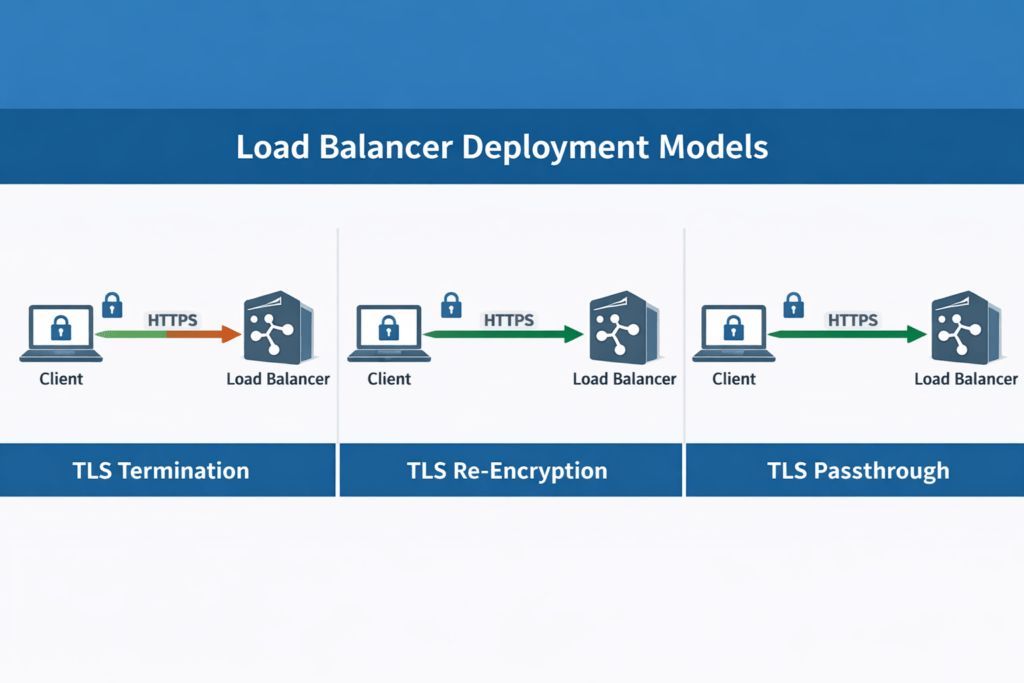
NGINX can also provide load balancing across multiple applications. Refer to the admin-guide for more details on the various configurations.
Operational Considerations
Service Management
While modern Linux operating systems use SystemD, specifically systemctl, for controlling service units, nginx has built-in controls. The following syntax can be used:
nginx -s signalValid signal options include:
stop— fast shutdownquit— graceful shutdownreload— reloading the configuration filereopen— reopening the log files
Firewall Considerations
Ensure inbound traffic is permitted for:
- TCP 80 (HTTP)
- TCP 443 (HTTPS)
Firewall configuration varies by distribution and environment (firewalld, nftables, cloud security groups, ufw, etc.), but the ports must be explicitly allowed.
SELinux
If SELinux is enabled and enforcing:
- Reverse proxying later may require network boolean adjustments.
- Web content must have the correct context.
- Custom certificate directories may require proper labeling.
Validate the Effective Configuration
nginx -TThis prints the fully rendered configuration tree, including all included files — useful when troubleshooting include order or unexpected behavior.
Conclusion
This post established a portable, production-aligned baseline configuration for static web hosting with NGINX and TLS. By following upstream conventions and maintaining a consistent layout, the configuration remains predictable, maintainable, and easy to extend. Whether used in a lab, on a Raspberry Pi, or in production, this structure provides a clean foundation for reverse proxying, application hosting, or load balancing without requiring structural redesign.
Leave a Reply