
Launch Microsoft SQL Server Management Studio (SSMS) with an administrative account.
Type the fully qualified domain name in the Server name: textbox.
Change the Authentication method from the drop-down box.
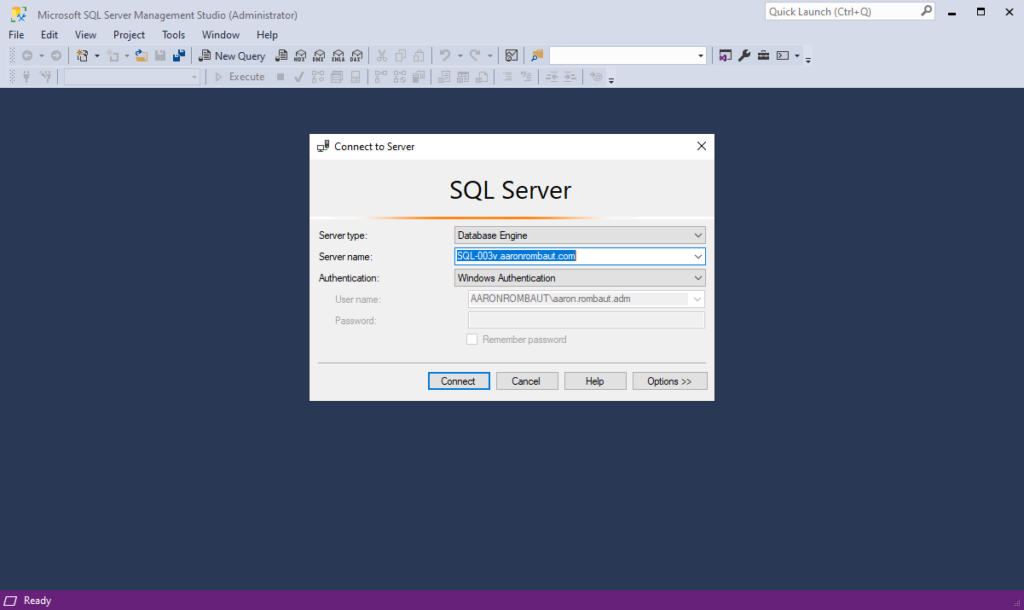
Click the Connect button.
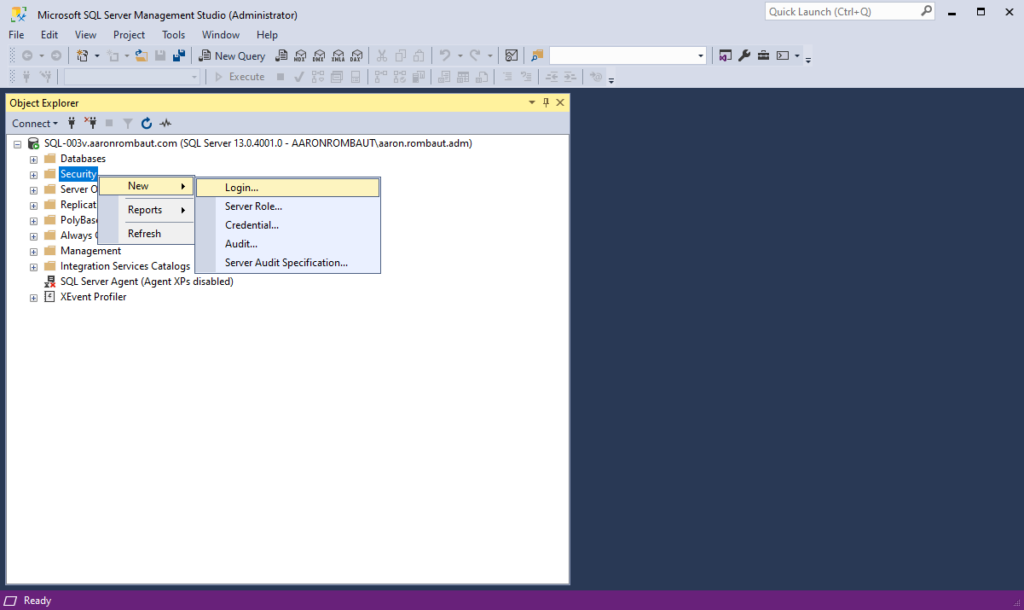
Right-click the Security folder > choose New > click Login…
Provide the computer name in the Login name textbox. A computer name consists of a domain name, backslash, followed by a host name, and ending with a dollar sign ($). See below for reference.
<DOMAIN-NAME>\<HOSTNAME>$
AARONROMBAUT\APP-001v$
Choose a Default Database from the drop-down if one has been created.

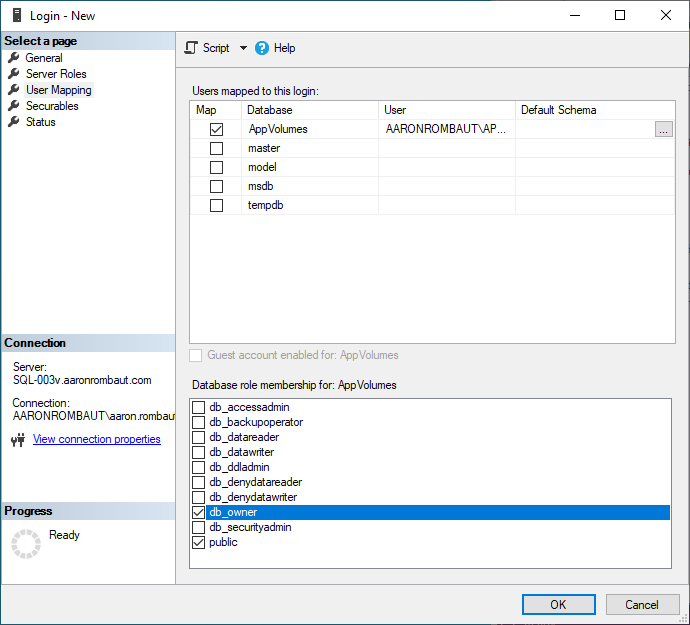
Choose User Mapping from Select a page.
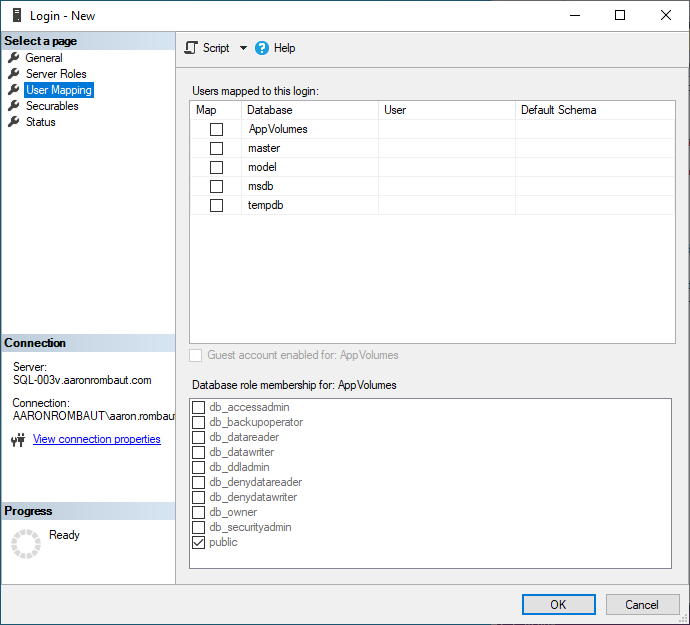
Click the checkbox for the database this computer account should be associated with in the Users mapped to this login: pane.
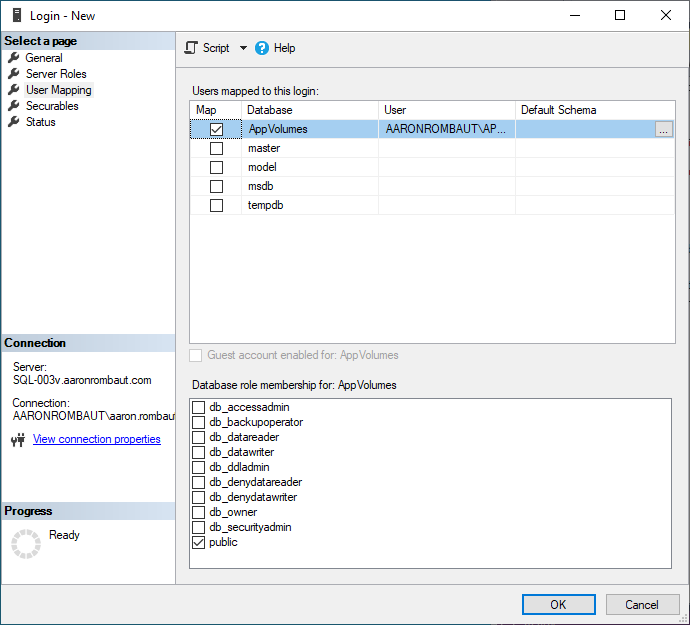
Click the checkbox for the db_owner in the Database role membership for: <Database Name> pane.
Click the OK button.